 Chop Sampler
User Guide / Song Mode
Song Mode
The  SONG tab chains your sequences into a full song: intro, verse, hook, and so on. You can build it by tapping pads or by drawing blocks in the arranger.
A song is simply a list of sequences played in order. To repeat a section, add the same sequence again. Each sequence plays at its own tempo. When the song reaches the end, it starts again from the top.
The SONG tab has two views of the same song. ARRANGE opens first; tap SONG again to switch to LIST and back.
Song pads
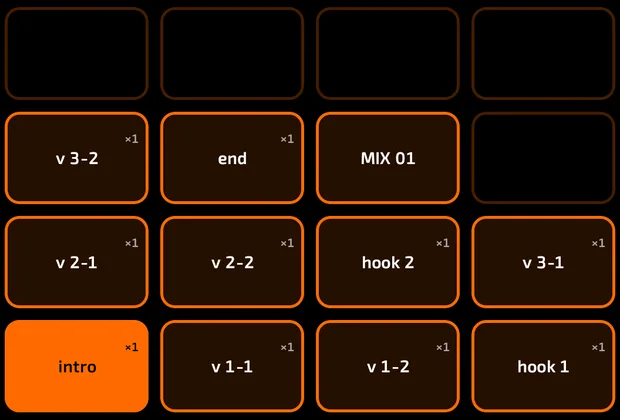
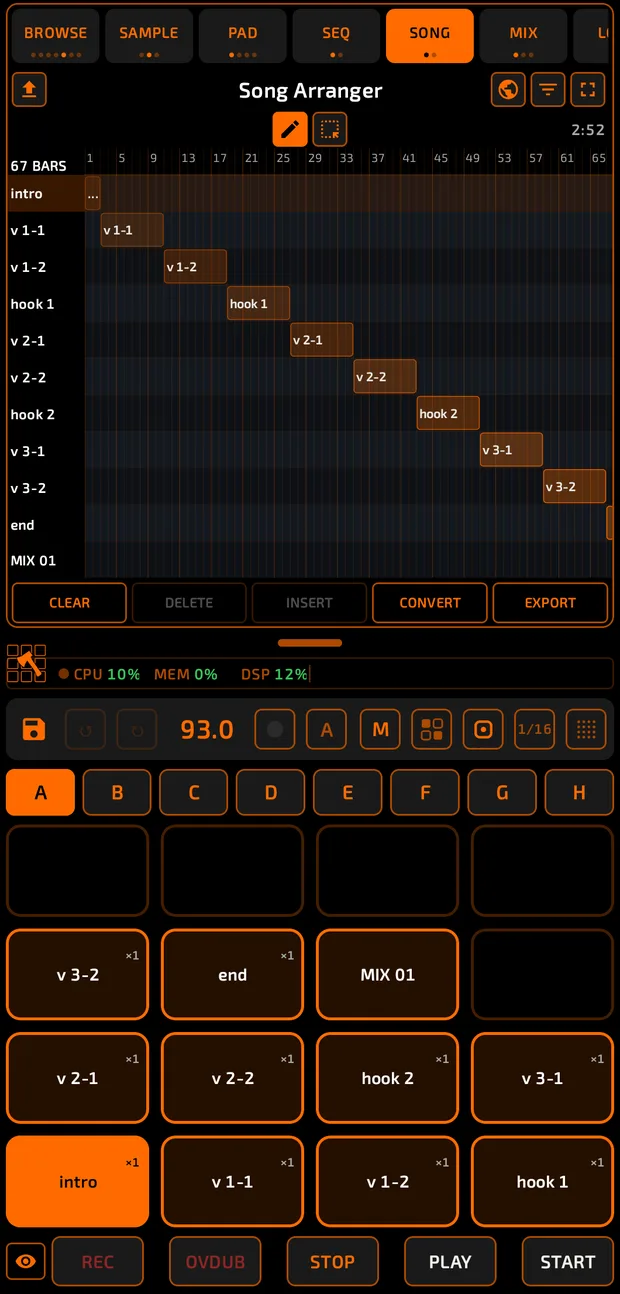
While you're on the SONG tab, the pads stop playing sounds. Each pad becomes one of your sequences (only sequences that have notes), starting at pad 1 of bank A.
The SONG tab with the pad grid showing sequence names on the pads, one solid (playing), one flashing (queued) and "x2" style badges.
song-pads.mp4
- The playing sequence's pad is solid. A sequence queued to play next flashes.
- A ×2-style badge shows how many times a sequence is in the song.
- Long-press a pad to rename its sequence.
How to build a song by tapping
- Open SONG.
- Tap REC (or OVDUB). In song mode this turns on song recording. The LIST view shows ● REC - tap pads to add.
- Tap song pads in the order you want. Each tap adds that sequence to the end of the song.
- Tap REC again to stop.
- Tap
 START to hear the song from the beginning.
Playing the song
 PLAY continues from the current part. START plays from the first part.
- One tap on
 STOP pauses. Two quick taps stop and go back to the start.
 - While the song plays, tap a song pad to make that sequence play next. The song carries on from there.
- The metronome is silent on the SONG tab.
ARRANGE view
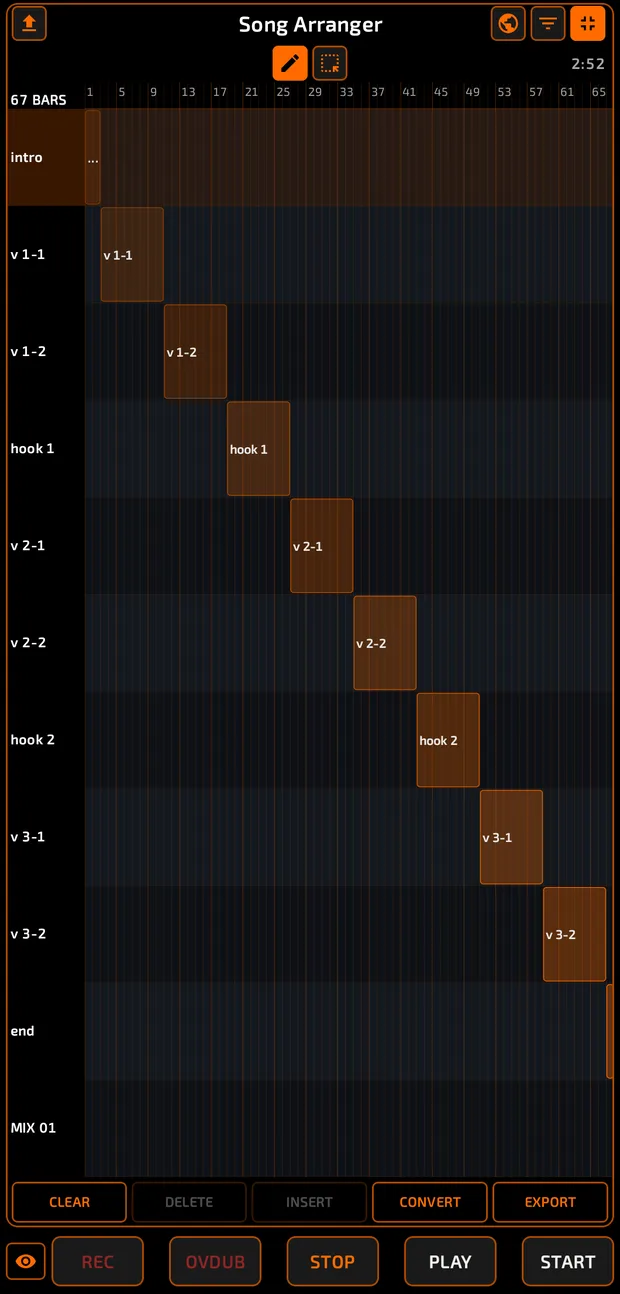
Tap  to zoom out to the whole song,
  for full screen, and
  to come back.
Tap the world-view button  to zoom out and see the whole song at once.
ARRANGE view with several lanes (one per sequence), blocks laid out along the timeline, the ruler with bar numbers, the white playhead, the Pencil and Select tools and the total time on the right.
song-arranger.mp4
Each sequence gets its own lane, and blocks show where it plays.
 Pencil (default):
- Tap an empty spot in a lane to insert that sequence there. Later blocks move right.
- Tap a block to remove it.
- Drag to scroll.
 Select:
- Tap blocks to select several. Tap empty space to clear the selection.
- Drag a block to move it to a new spot in the order.
- Drag on empty space to draw a selection box.
- DELETE removes the selection.
- Tap the ruler to jump to that part of the song.
- Pinch sideways to zoom; pinch up and down to change lane height.
- The total song time shows on the right.
Top-right icons: Fit (show the whole song),  Filter (hide sequences that aren't in the song) and full screen. The top-left icon opens
  EXPORT STEMS.
How to loop one section
Long-press a block (or double-tap a lane name). Chop leaves the song, loops just that sequence and opens it on SEQ so you can work on it. Go back to SONG and press START to play the whole song again.
LIST view
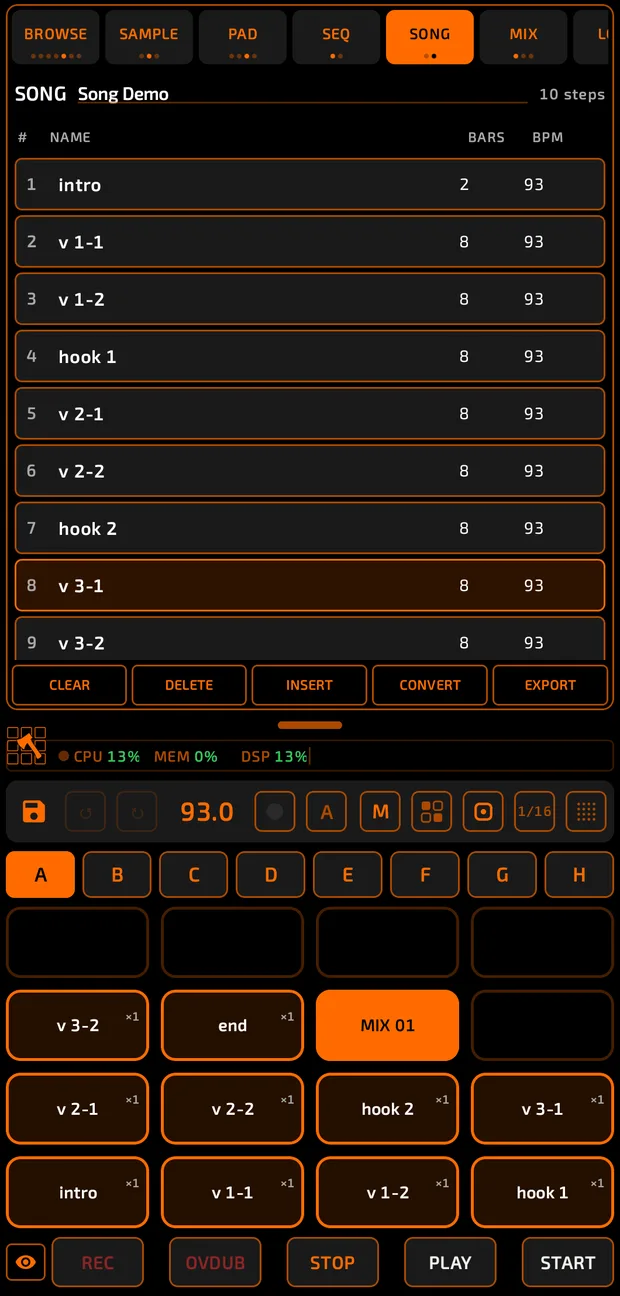
- Type the song's name in name song… at the top.
- Each row shows #, NAME, BARS and BPM. The playing row shows ▶.
- Tap a row to select it.
Song buttons
| Button | What it does |
|---|---|
 CLEAR CLEAR | Empties the song (ARRANGE asks first). Your sequences aren't deleted. |
 DELETE DELETE | Removes the selected part. |
 INSERT INSERT | LIST only: tap a song pad first, then INSERT adds that sequence below the selected row. |
 CONVERT CONVERT | Joins the whole song into one new sequence (named MIX 01, MIX 02...), including mutes and automation. Choose the target slot, then APPLY. |
 EXPORT EXPORT | Renders the song to an audio file. The song needs a name first. See Projects and Export. |
Tips
- Build short sequences (4 or 8 bars) and repeat them in the song, rather than one long sequence.
- Use COPY in the sequencer to make variations (verse with fills, hook with extra hats), then chain them here.
- CONVERT is handy for turning a finished song into one sequence you can flatten.