 Chop Sampler
User Guide / Flatten and Resources
Flatten and Resources
Effects and synths use your phone's processing power (DSP), and samples use memory. This page shows how to watch those numbers and how to free them up by flattening sounds into plain samples.
The status bar meters


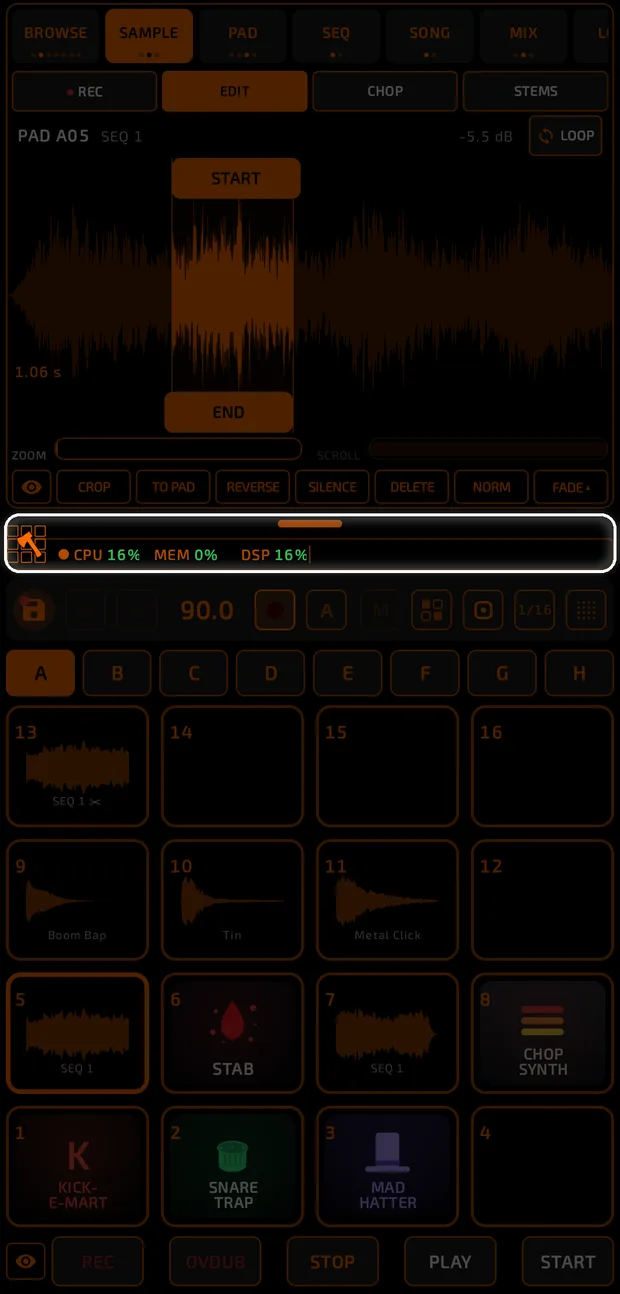
The status bar shows CPU, MEM and DSP:
| Meter | Meaning |
|---|---|
| CPU | How much of the phone's processor Chop is using (100% = the whole phone). |
| MEM | How much of Chop's sample memory is in use. |
| DSP | How much of the audio engine's time is used for each slice of audio. Near 100% means crackles and dropouts. |
Green is fine, orange (60% and up) means take care, red (80% and up) means it's time to free something. A dot beside the meters turns red when the phone is running hot.
The Resources window
Tap the CPU / MEM / DSP numbers to open RESOURCES. Tap again (or X) to close it.
The floating RESOURCES window on the SYS tab with CPU / DSP graphs, MEM, CHIP TEMP, BATTERY, and the FLUSH / FREE MEM / DIAGNOSE / REPORT buttons at the bottom.
resources-window.mp4
It floats over the app, so you can keep playing. Drag it anywhere and resize it from the corner. It only measures while open.
| Tab | Shows |
|---|---|
| SYS | CPU and DSP with history graphs, memory, chip temperature, thermal state, battery and time. |
| AUDIO | Audio path, latency, sample rate, buffer size and more. |
| I/O | MIDI devices, sync status and audio outputs. |
| MIDI | Live monitors of MIDI coming in and going out. |
| BEAT | Song, sequence, tempo, length, position and time signature. |
| FILES | Sample memory, project size, app data and free storage. |
Every Resources tab
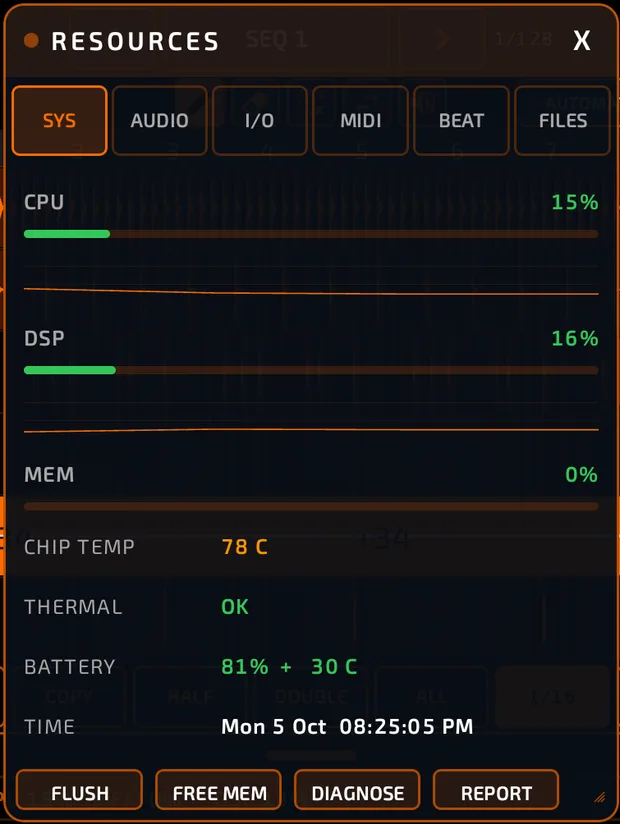
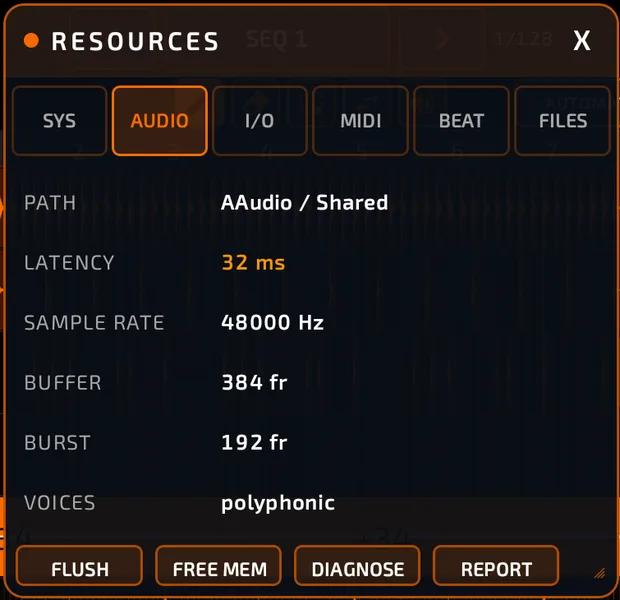
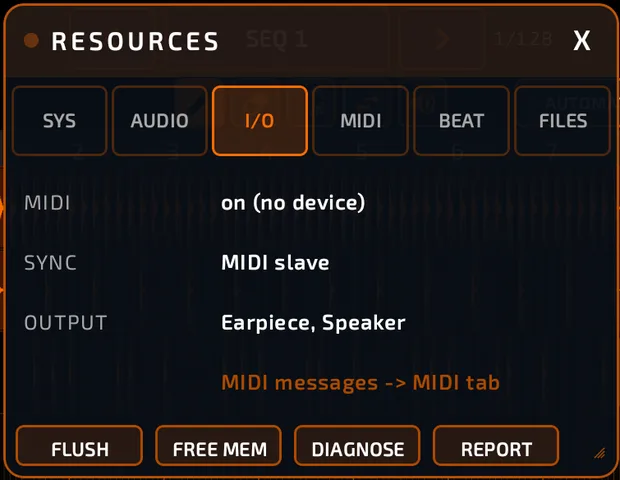
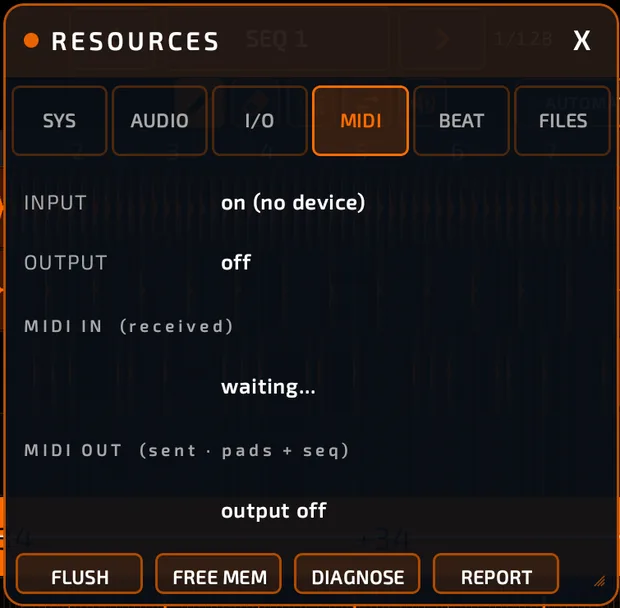
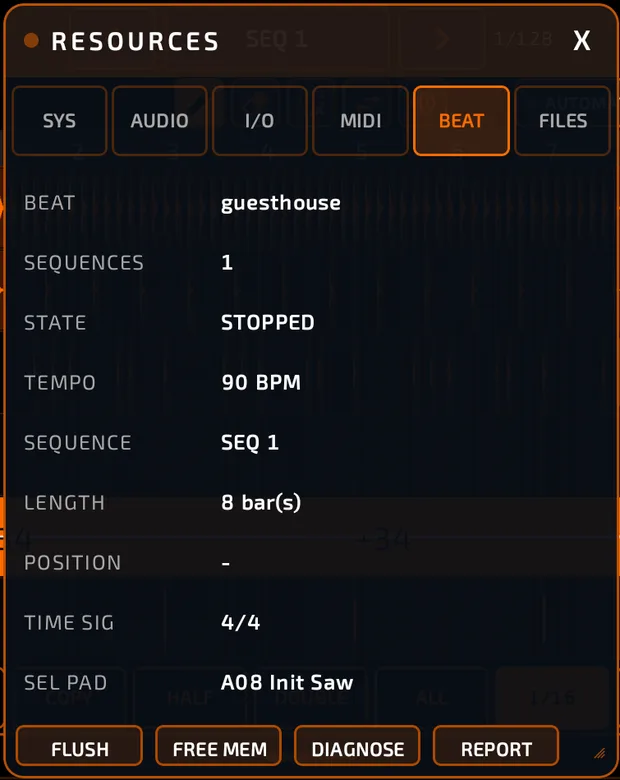
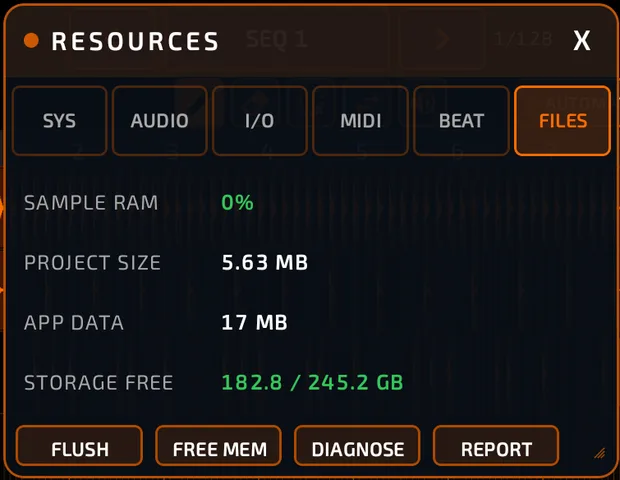
The buttons at the bottom:
- FLUSH: remove unused stuff (below).
- FREE MEM: clear undo history to get memory back (below).
- DIAGNOSE: opens the audio fixer. See Troubleshooting.
- REPORT: write a private bug report and share it. See Troubleshooting.
Flatten a pad
Tap the flatten button  in the middle strip, or reach it from the Chop menu
  .
.
Flattening records a pad's sound, effects included, into a new sample. It sounds the same but no longer runs the effects (or the synth), so it frees their DSP.
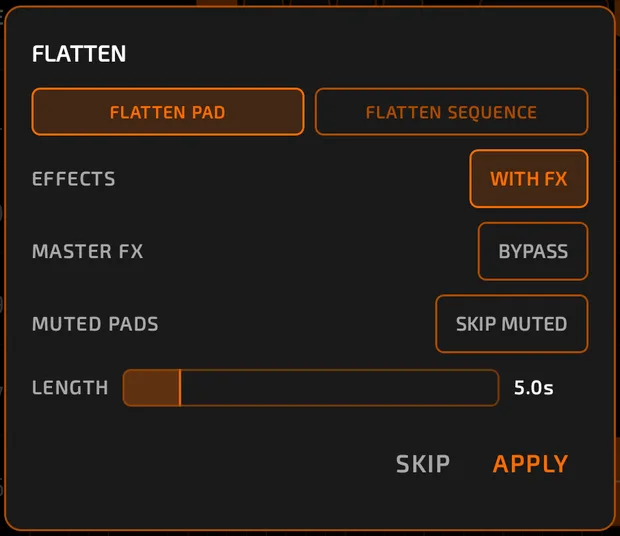
- Select the pad.
- Tap the flatten button in the middle strip (pad icon with a dot).
- Choose FLATTEN PAD and set the options:
- EFFECTS: WITH FX (keep the effects in the sound) or DRY.
- MASTER FX: INCLUDE or BYPASS.
- SIMUL PADS (only if the pad has linked pads): LAYER IN to mix them into the result, or SOURCE ONLY.
- MUTED PADS: SKIP MUTED or INCLUDE.
- LENGTH (synth pads only): how long the note is held, 0.5 to 30 seconds.
- Tap APPLY.
- In SEND TO PAD, pick a bank and a pad for the result.
- If that pad already has a sound, PAD OCCUPIED asks to overwrite it. If it has notes in the sequencer, choose KEEP NOTES or CLEAR NOTES. Tap APPLY.
To actually free the DSP, play the new pad and switch off the original's effects, or delete the original. Flattening onto the same pad replaces it in one step.
Flatten a sequence
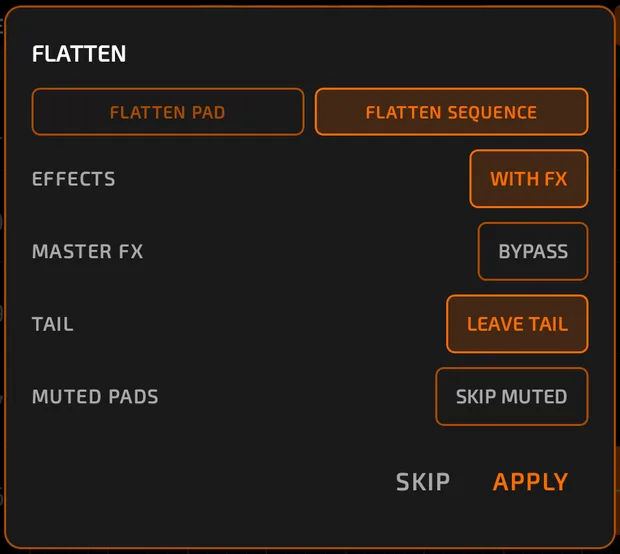
Bounce a whole beat, effects and all, into one sample.
- Tap the flatten button and choose FLATTEN SEQUENCE.
- Choose TAIL: LEAVE TAIL lets reverbs and delays ring past the loop; CUT AT LOOP trims to exactly one loop.
- Set EFFECTS, MASTER FX and MUTED PADS as above, then APPLY.
- Pick the destination pad.
One pad now plays the whole beat, so you can delete the original pads and free their DSP.
Flatten can be undone.
FLUSH: clear what you're not using
- Tap FLUSH (Resources window, or BROWSE > MEMORY).
- Choose what to clear:
- SAMPLES: samples that aren't on any pad.
- PADS: pads that aren't used in any sequence (they're highlighted red so you can check).
- SEQUENCES: sequences that aren't in your song.
- Read the WARNING (how many items will go) and tap APPLY.
Treat FLUSH as permanent.
FREE MEM: clear undo history
FREE MEM clears the undo/redo history and the copy/paste clipboard to reclaim memory. Your pads, samples and sequences are never touched; you just can't undo past this point. Tap FREE to confirm.
Tips
- Flatten synth pads with heavy effects once you're happy with their sound.
- Flatten a finished drum loop into one pad, then chop it again for new ideas.
- If MEM is high, FLUSH unused samples first, then FREE MEM.
- Close other apps and see Troubleshooting if DSP stays high.