 Chop Sampler
User Guide / Projects and Export
Projects and Export
Save your work as projects and kits, back up your settings, and export finished songs or individual stems as audio files.
Projects
A project is everything: pads, samples, synths, effects, sequences, song, mixer and notes.
How to save
- Tap the save icon
 in the middle strip. It glows with a red dot
  when you have unsaved changes. Or use
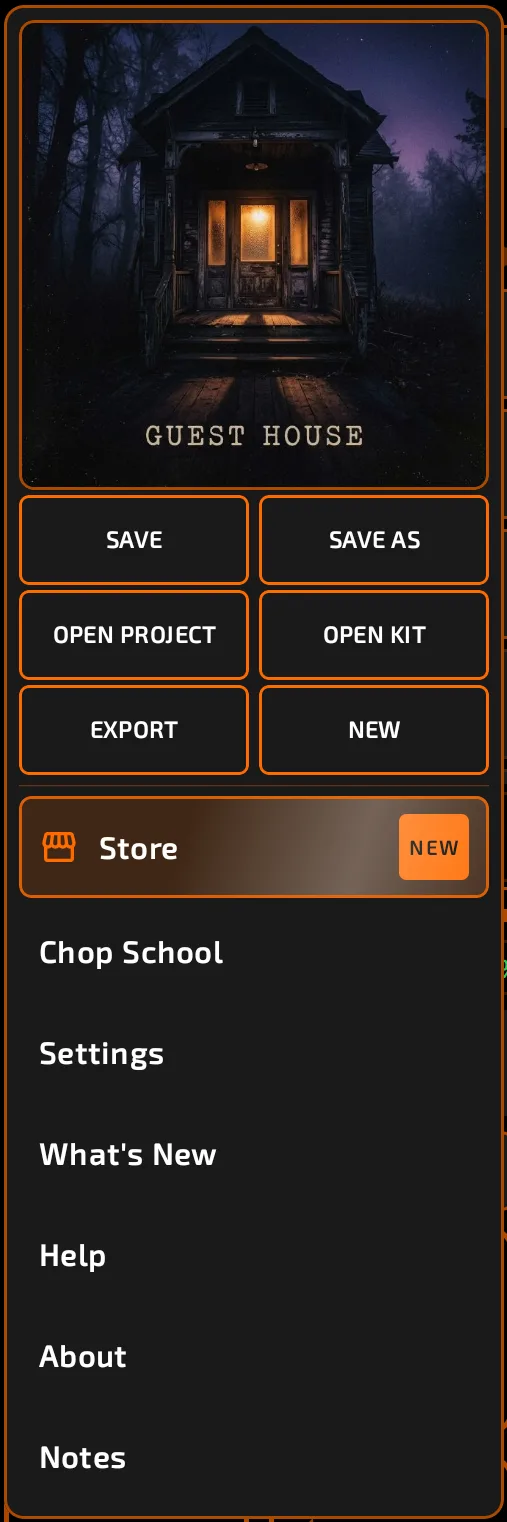
  Chop menu > SAVE.
- If the song has no name yet, Chop asks you to name it (NAME SONG).
- The first time, pick a project folder on your phone.
Each project is saved in its own folder (with its samples and cover picture). Saving again skips samples that haven't changed, so re-saves are quick.
Save As
 Chop menu > SAVE AS opens
  BROWSE > PROJECTS with the name box ready. Type a new name and tap
  SAVE.
SAVE.
Open a project
 Chop menu > OPEN PROJECT (or BROWSE > PROJECTS).
- Tap a project and confirm LOAD PROJECT? with APPLY. This replaces your current pads and sequences.
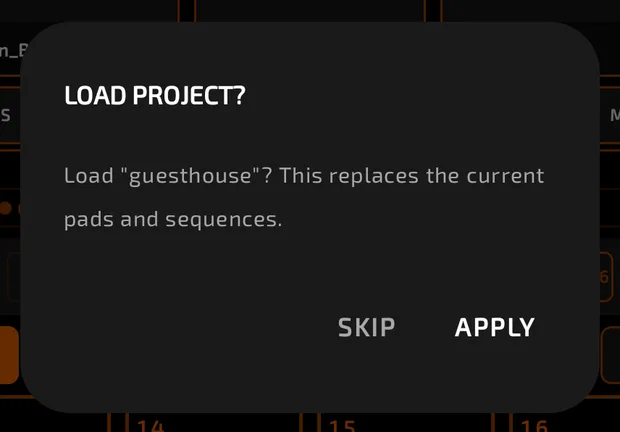
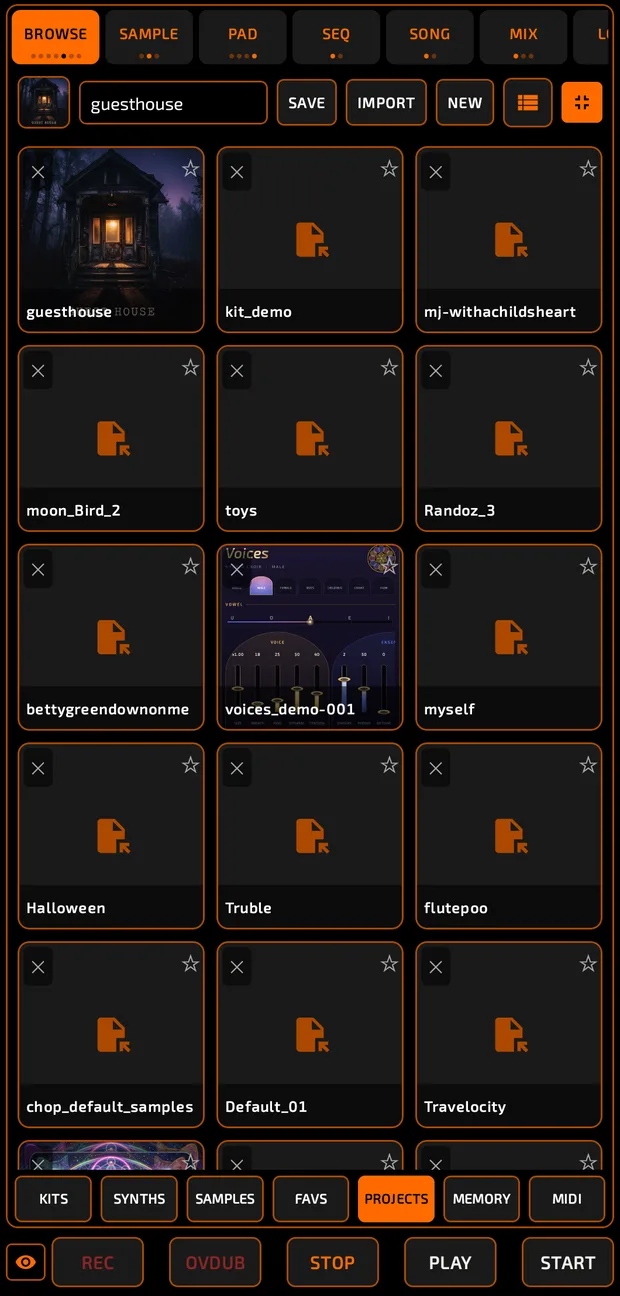
IMPORT copies a .chop project file into your project folder.
New project
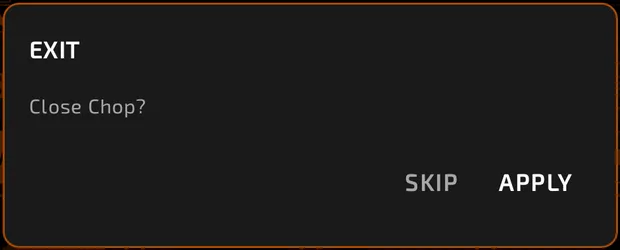
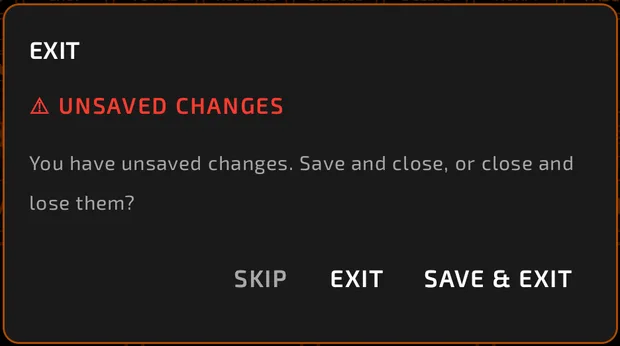
 Chop menu > NEW clears all pads and starts fresh. It warns you about unsaved changes, and offers to save on the way out:
Project image and notes
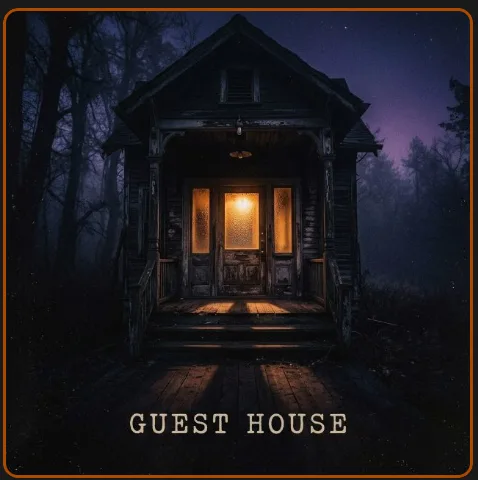
- Chop menu > PROJECT IMAGE: pick a cover picture from your gallery.
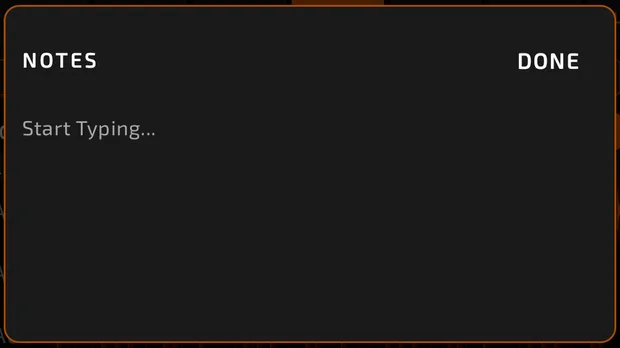
- Chop menu > Notes: a notepad saved with the project. Great for lyrics or to-do lists.
Autosave
Chop also saves your session automatically in the background, so if Android closes the app, your work comes back when you reopen it. This is separate from saving a project, so still save your projects.
Kits
A kit is a set of pads (sounds and settings) you can load into any project. Save and load kits from  BROWSE > KITS (or
  Chop menu > OPEN KIT). See Browse.
Backups
In Settings > FILE MANAGEMENT > BACKUP:
- PRESET BACKUP FOLDER: your presets, favorites, MIDI mappings and colors are copied here. After reinstalling Chop, set the same folder and tap RESTORE FAVORITES & SETTINGS.
- PROJECT BACKUP FOLDER: every project save is also copied to a second folder. Saving takes longer, but unchanged samples are skipped.
Exporting a song
How to export
- Name your song and add at least one sequence to it in the SONG tab. See Song Mode.
- Chop menu > EXPORT (or
 EXPORT on the SONG tab).
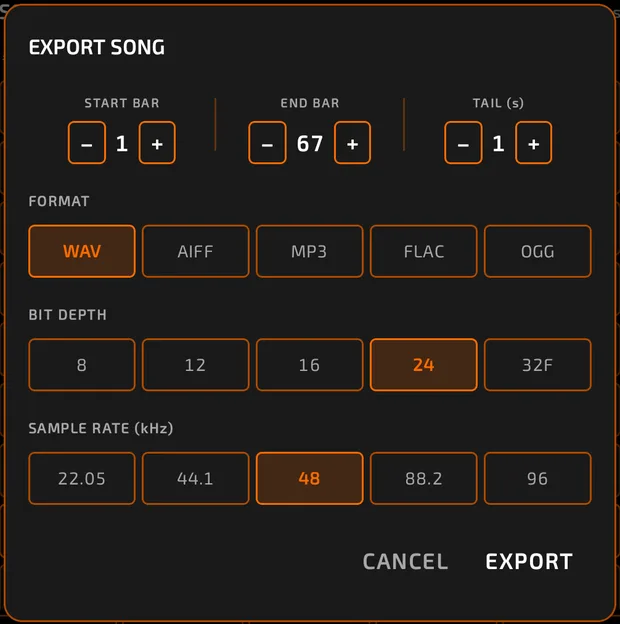
 - Set the options and tap
 EXPORT.
 - Choose where to save the file.
Options
| Option | Choices |
|---|---|
| START BAR / END BAR | Which part of the song to render. |
| TAIL (s) | Extra seconds at the end for reverb and delay tails (0 to 30; default 1). |
| FORMAT | WAV, AIFF, MP3, FLAC, OGG |
| BIT DEPTH | 8, 12, 16, 24 (default), 32F. 8 and 12 give a lo-fi crunch. FLAC goes up to 24. Bit depth doesn't apply to MP3 and OGG. |
| SAMPLE RATE (kHz) | 22.05, 44.1, 48 (default), 88.2, 96 |
| ANTI-ALIAS FILTER | Shown at 22.05 and 44.1. On gives a clean result; off gives raw lo-fi aliasing on purpose. |
MP3 is saved at 320 kbps. The export renders faster than real time and includes everything you hear: effects, buses, master, mixer settings and automation.
Exporting stems
Render pads to separate audio files (for mixing in another app, or for sharing with a collaborator).
- Tap the export stems icon
 (top-left of SEQ or the song arranger).
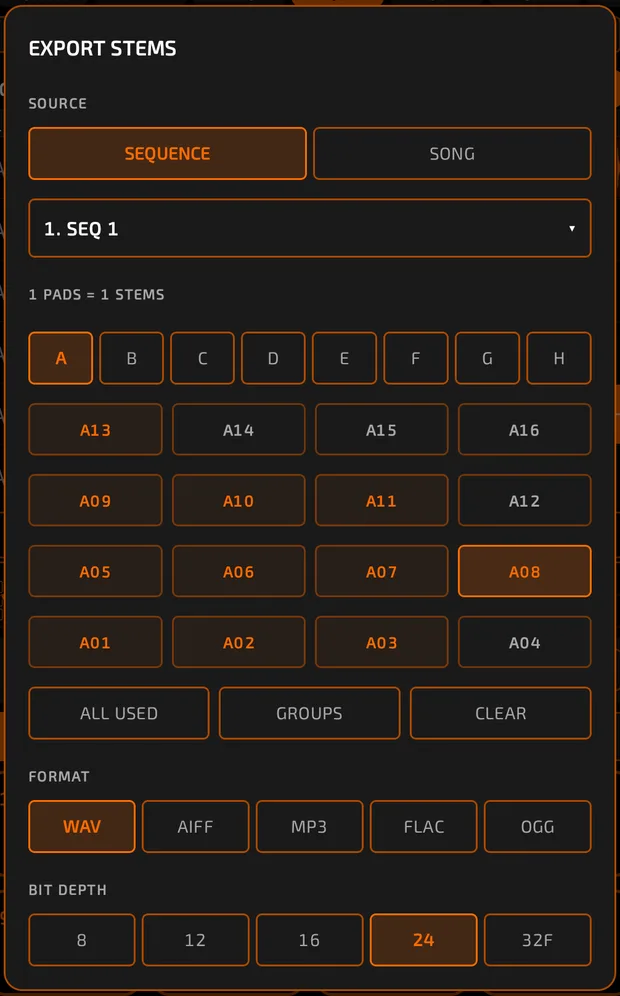
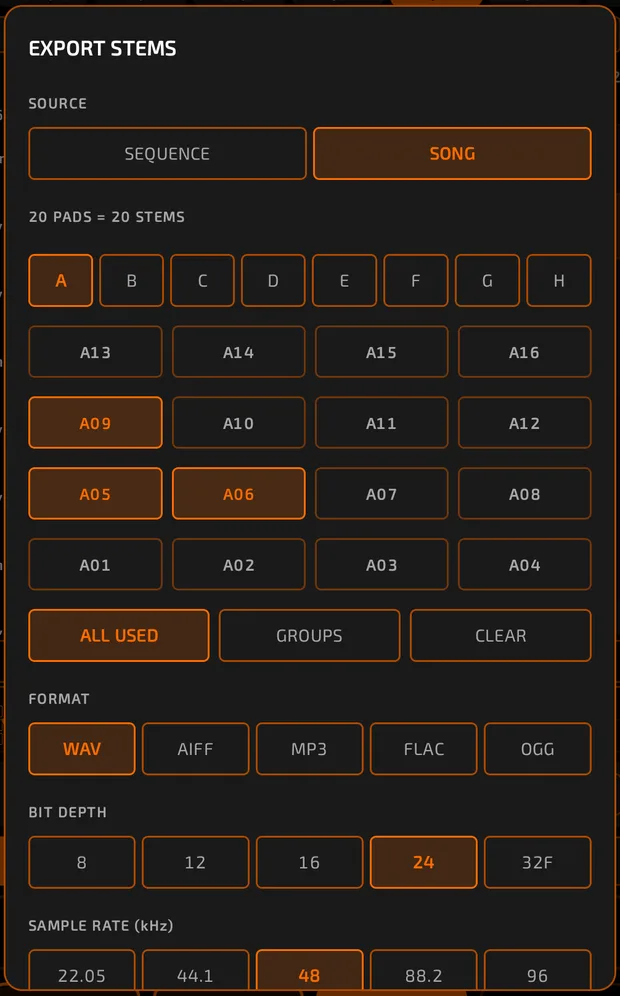
 - SOURCE: SEQUENCE (pick which one) or SONG.
- Pick pads, or tap ALL USED. GROUPS turns each fader group into one combined stem.
- Set FORMAT, BIT DEPTH, SAMPLE RATE, TAIL (s) and MASTER FX: ON / OFF.
- Tap EXPORT and choose a folder. Chop makes a "stems" folder with one file per stem (named like A01 or GROUP1).
Exporting from a sequence and from the whole song look slightly different:
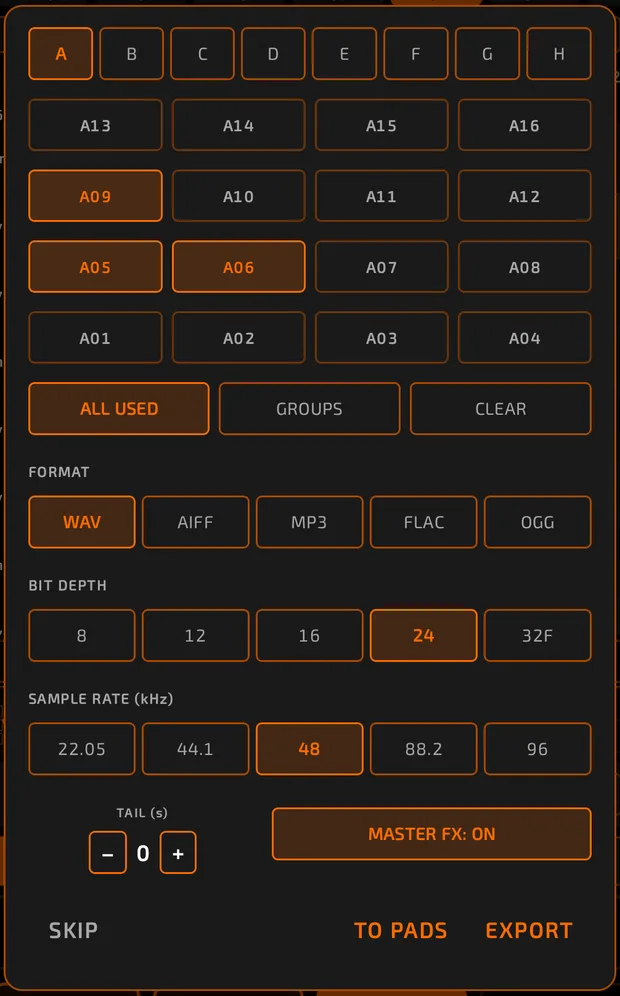
TO PADS puts the stems back onto pads instead of saving files: tap pads in order (or FILL EMPTY BANK), then PLACE.
Pads with no notes are skipped. Exporting stems is free; it's different from the premium Stem Separation, which splits a finished song into parts (see Sampling and Editing).
Exporting a single sample
BROWSE > MEMORY, select the sample, tap EXPORT. If it has slices, choose WITH SLICES to include the slice markers.
Exporting MIDI
See MIDI.
Tips
- Set a project backup folder on a different storage location (for example an SD card) for peace of mind.
- Projects using premium sounds you don't own will play those sounds silent once purchases are live. Before sharing a project, flatten your sequences or export stems.
- Use 44.1 kHz / 16-bit WAV for most uploads, 48 kHz / 24-bit for video work.