 Chop Sampler
User Guide / Piano Roll
Piano Roll
The piano roll edits one pad's notes by pitch: perfect for melodies, basslines and chords from synths or tuned samples.
How to open it
- Select the pad you want to edit.
- Open SEQ, then tap SEQ again. The tab now reads
 PIANO.
 - Tap PIANO to go back to the sequencer.
Tap another pad while the piano roll is open to switch to that pad. In a pad mode (TUNE, SCALES, CHORDS...), it opens on the source pad.
What you see
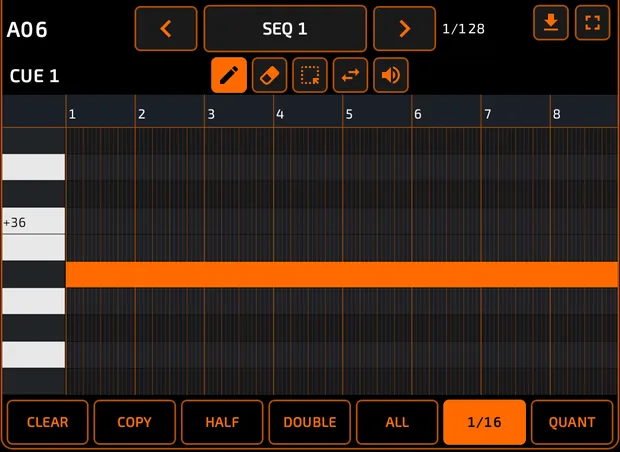
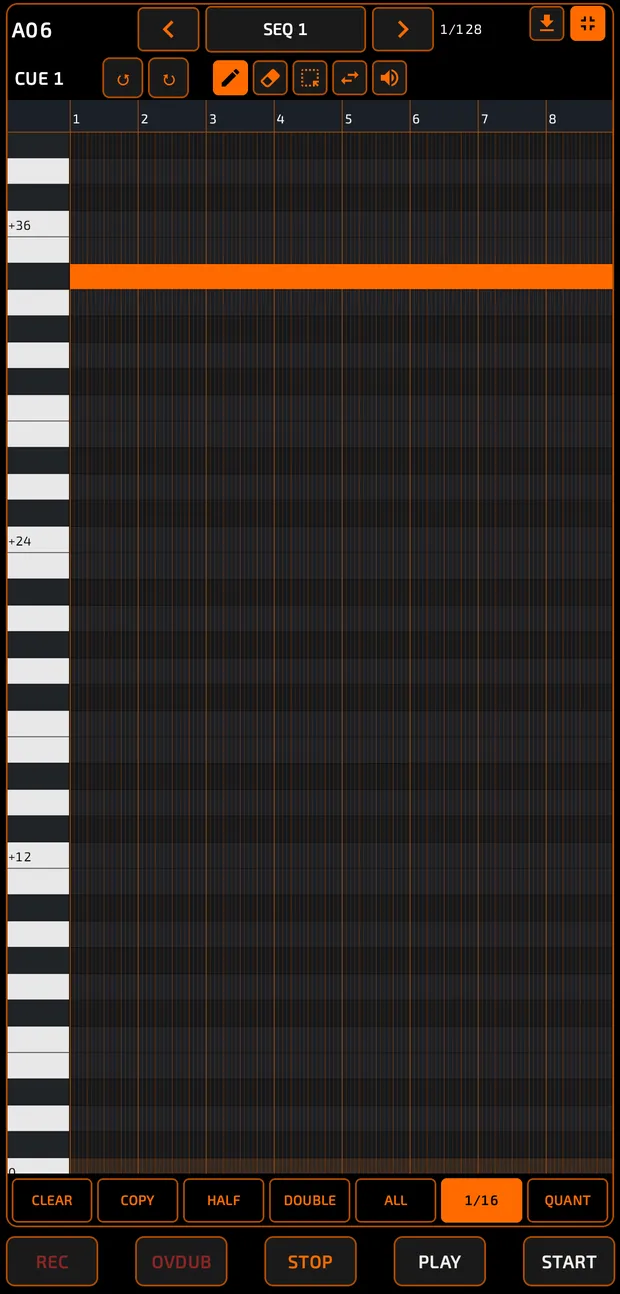
- The pad name at the top-left, then the same sequence selector, counter and tools as the sequencer.
- A keyboard down the left side. Each row is one semitone, from 5 octaves below to 5 octaves above the pad's normal pitch. The 0 row (normal pitch) is highlighted, and octaves are labeled +12, -12 and so on.
- Tap a key to hear the pad at that pitch.
- Rows light up for notes you play live.
- The bottom row is the same as the sequencer: CLEAR, COPY, HALF, DOUBLE, ALL, SNAP, QUANT.
Editing notes
| Tool | What it does |
|---|---|
 Pencil Pencil | Tap to add a note at that pitch (you'll hear it). Tap a note to delete it. Drag a note to move it in time and pitch. |
 Erase Erase | Tap a note to delete it. |
 Select Select | Tap notes or drag a box. Drag a selected note up or down to transpose the whole selection. |
 Resize Resize | Drag the start or end of a note. |
 Velocity Velocity | Drag a note up or down to make it louder or softer. |
- Long-press for CUT / COPY / PASTE. Pasted notes land on the pad you're editing, so you can copy a phrase from one pad to another.
- ALL selects all of this pad's notes.
- Pinch sideways to zoom; pinch up and down to change row height.
- Drag the ruler to move the playhead.
On a MONO pad, a new note on the same row replaces or trims the one it overlaps. POLY pads let notes stack into chords.
The piano roll doesn't highlight scales and doesn't show automation lanes (use the sequencer for automation).
Importing a MIDI file onto a pad
- Open the piano roll on the pad you want.
- Tap the
 Import MIDI icon (down arrow, top-right).
 - Pick a .mid file.
All the file's notes land on this pad and replace its existing notes in this sequence. The sequence gets longer if needed. You can undo it. To import a whole multi-part file, use BROWSE > MIDI instead (see MIDI).
Full screen and undo
Undo  and redo
  , expand
  and exit full screen
  .
.
The expand icon (top-right) makes the piano roll fill the screen; the transport stays visible. Undo and redo move into the tool row in full screen.
Tips
- Use SNAP at 1/16 for tight lines, or OFF for loose, played feel.
- Record a melody live with TUNE or SCALES, then clean it up here.
- Use the Velocity tool on a selection to make a whole phrase softer while keeping its accents.