 Chop Sampler
User Guide / Pad Modes
Pad Modes
Pad modes make every pad play one sound in a different way: at different pitches, in a scale, as chords, or at different volumes. It's how you play melodies, basslines and chord progressions on drum pads.
How to turn on a pad mode
The pad modes button sits at the far right of the middle strip:

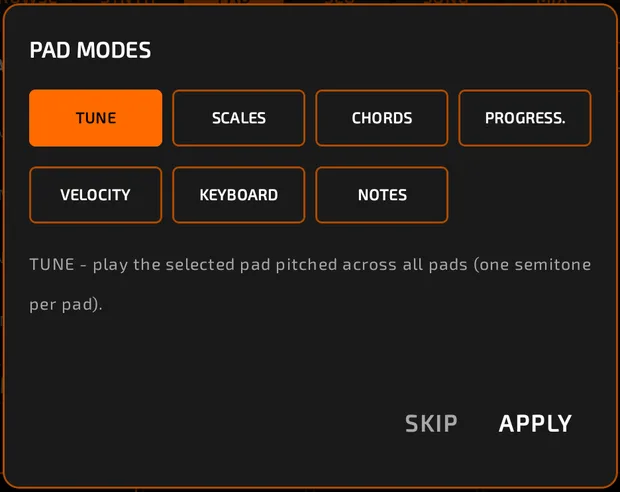
- Select the pad you want to play (the source pad). It must have a sample or a synth.
- Tap that button, or PAD MODES on PAD > LOGIC.
- Tap a mode to read what it does, then tap APPLY.
While a mode is on, the button pulses red and the status bar shows the mode, for example TUNE MODE. Each pad shows the note or chord it plays.
To turn it off: tap the pad modes button again.
Every pad on every bank now plays the source sound. Your other pads' sounds aren't changed; they come back when you turn the mode off, and they still play in the sequencer.
The modes
| Mode | What the pads do |
|---|---|
| TUNE | Chromatic: each pad is one semitone higher than the last. The source pad plays at its normal pitch. |
| SCALES | Each pad is the next note of a scale you pick, so you can't hit a wrong note. |
| CHORDS | Each pad is the in-key chord on the next scale degree (I, ii, iii, IV...). |
| PROGRESS. | Each pad plays a chord from a ready-made chord progression. |
| VELOCITY | Same pitch on every pad, from soft (pad 1) to loud (pad 16). |
| KEYBOARD | Replaces the pads with two on-screen piano keyboards. |
| NOTES | Pads only play notes you've already recorded in this pattern, so a solo always fits. |
TUNE
Great for 808 basslines and melodies from a single sample. You can also turn TUNE on from the keyboard icon in a synth's editor.
SCALES
After APPLY, pick a key and scale in SCALES - KEY & SCALE:
- ROOT: C to B.
- SCALE: 33 scales, grouped as Common, Modes, Jazz, World and Symmetric. The default is Minor Pentatonic.
- Tap DONE.
Your key and scale are remembered for next time.
CHORDS
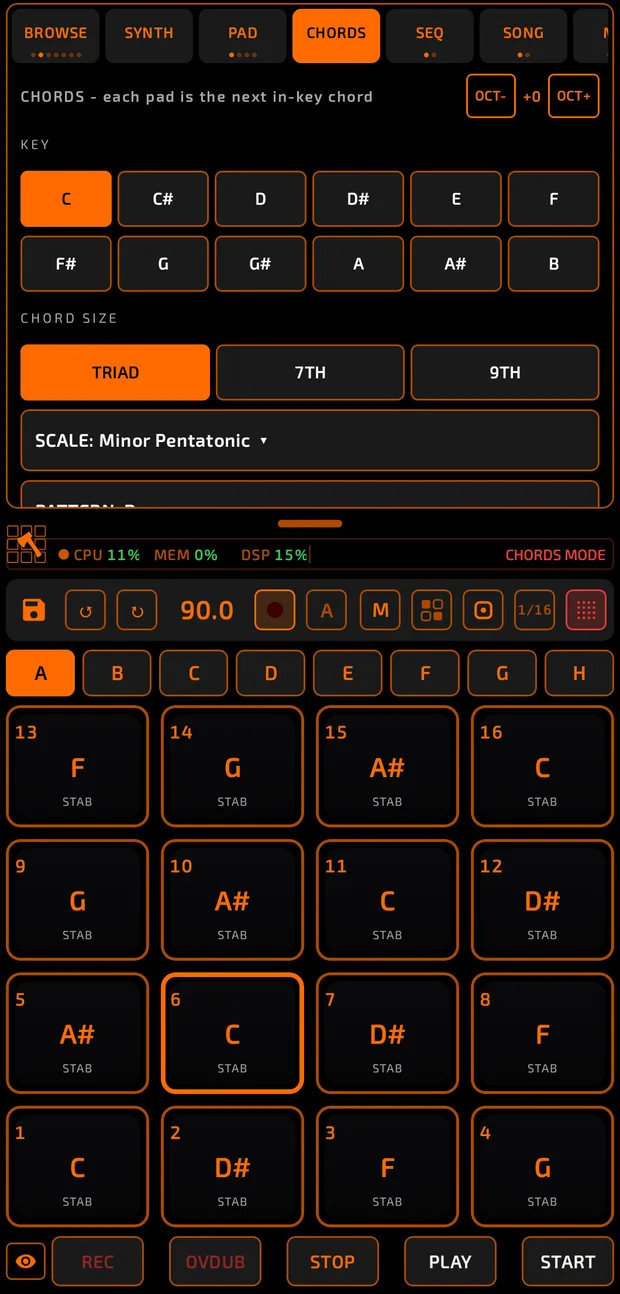


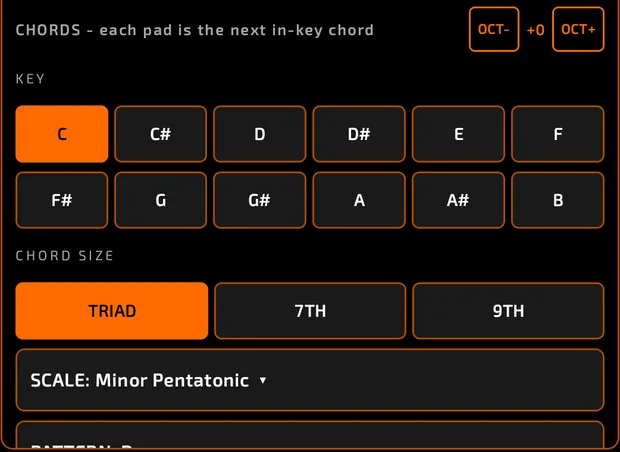
Each pad plays a full chord that fits your key. A CHORDS tab appears at the top with:
- KEY and SCALE.
- CHORD SIZE: TRIAD, 7TH or 9TH.
- OCT- / OCT+ to move everything up or down an octave.
- PATTERN, STRUM and HUMANIZE (see below).
PROGRESS. (chord progressions)
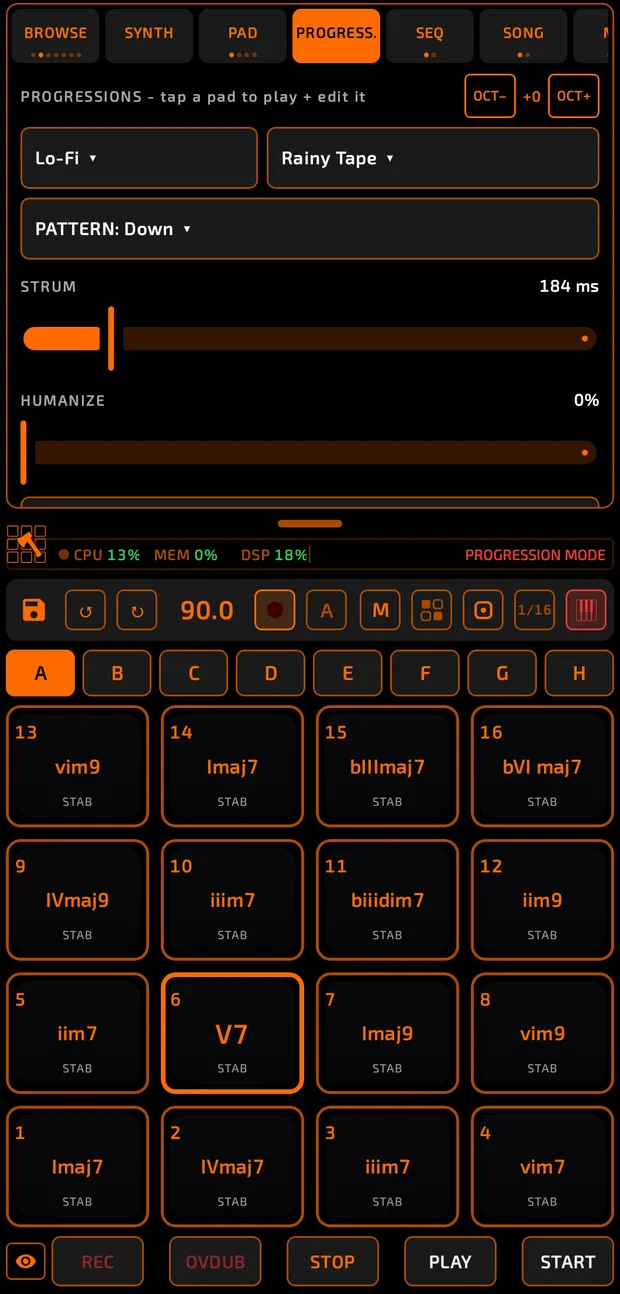


Each pad plays a chord from a progression, and a PROGRESS. tab appears at the top.
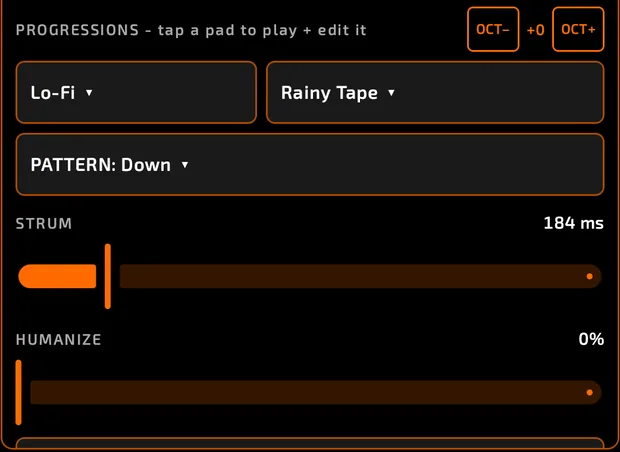
- Choose a category (Pop, Rock, Jazz, Blues, Soul / R&B, Neo-Soul, Lo-Fi, Gospel, Funk, Hip-Hop / Trap, House / EDM, Bossa / Latin, Classical, Cinematic, Dark, Sad, Artist Style, Acid Jazz, Trap, Drill).
- Choose a progression. There are 98 built in.
- Play the pads. Bank A holds the core progression, bank B a variation, and banks C to H more chords in the same style.
- To change one pad's chord: tap the pad, then pick a new chord from the PAD list.
Progressions follow the source pad's pitch, so they work in any key: change the key by changing the source pad's pitch, or use OCT- / OCT+.
Load your own progressions: put .json files in a folder and set it in Settings > FILE MANAGEMENT > PROGRESSIONS FOLDER. They appear under a Loaded category.
Strum and humanize (CHORDS and PROGRESS.)
- PATTERN: the strum order: Down, Up, Down-Up, Up-Down, Outside-In, Inside-Out, Pairs, Pairs Out, Thumb, Pinky, Random, Block.
- STRUM: how spread out the chord notes are (0 to 1200 ms).
- HUMANIZE: random timing and volume changes so it sounds played by hand.
Rearranging chords
In CHORDS or PROGRESS., long-press a pad and drag it onto another pad to swap their chords. Use one finger. Your samples aren't touched.
VELOCITY
Every pad plays the source at the same pitch, getting louder from pad 1 to pad 16. Perfect for ghost notes and accents on a snare or hat.
KEYBOARD

The pads turn into two stacked piano keyboards that play the selected pad.
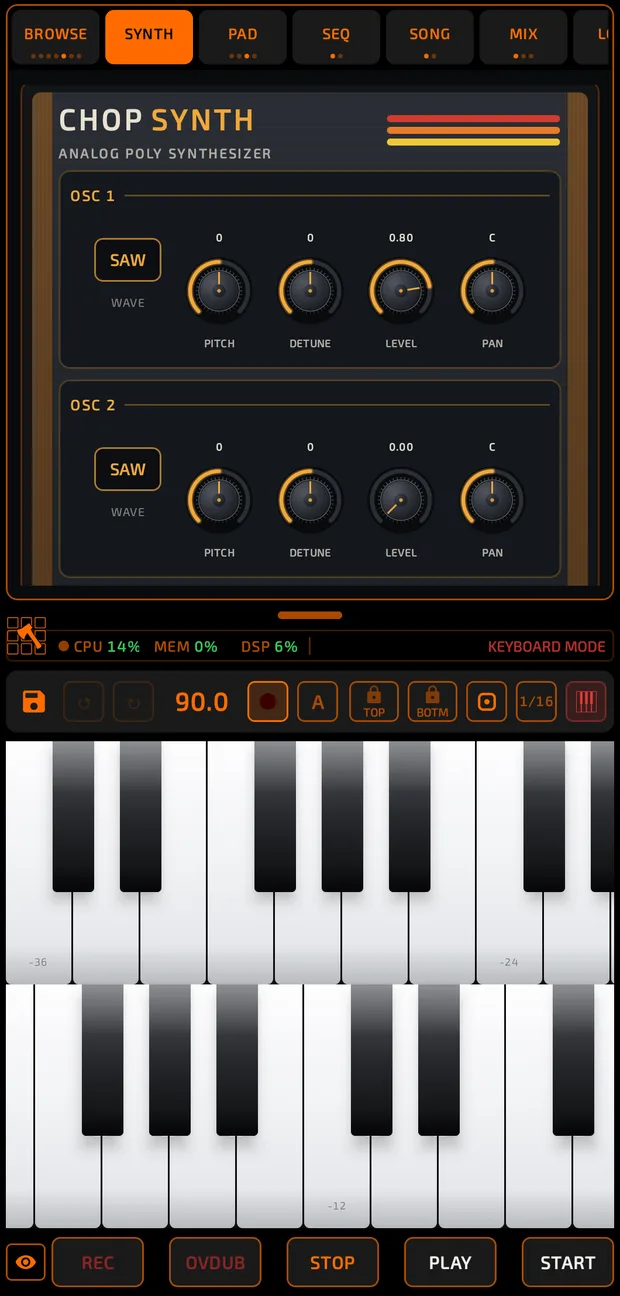
- Swipe each keyboard sideways to change its range.
- Pinch with two fingers to make the keys wider or narrower.
- Play chords across both keyboards.
 TOP and BOTM (in the middle strip) lock each keyboard so it can't scroll by accident.
NOTES
The pads only play the notes already recorded on melodic (synth) lanes of the current sequence, so anything you play fits. If nothing melodic is recorded yet, it uses your chosen key and scale.
Recording in pad modes
Notes you play are recorded on the source pad's lane with their pitch, and show up in the piano roll. Chords are recorded with their strum timing.
With a MIDI keyboard
- TUNE: keys play the source chromatically (middle C = the source's normal pitch).
- SCALES and NOTES: wrong notes snap to the nearest note in the scale.
- CHORDS and PROGRESS.: each key plays a pad's chord. Middle C is pad 1 of the bank on screen and each key up is the next pad. Switch banks to move the keys; your controller's octave buttons jump 12 pads.
The pad for each key you hold lights up. See MIDI.
Tips
- Chop a vocal, put TUNE on, and play it like an instrument.
- CHORDS and PROGRESS. switch the source pad to POLY so chord notes don't cut each other off.
- Combine VELOCITY with PAD CORNERS for extra control.