 Chop Sampler
User Guide / Chop School
Chop School
Chop School is a set of hands-on lessons inside the app. A pointing hand shows you exactly where to tap, and each step moves on as soon as you do it.
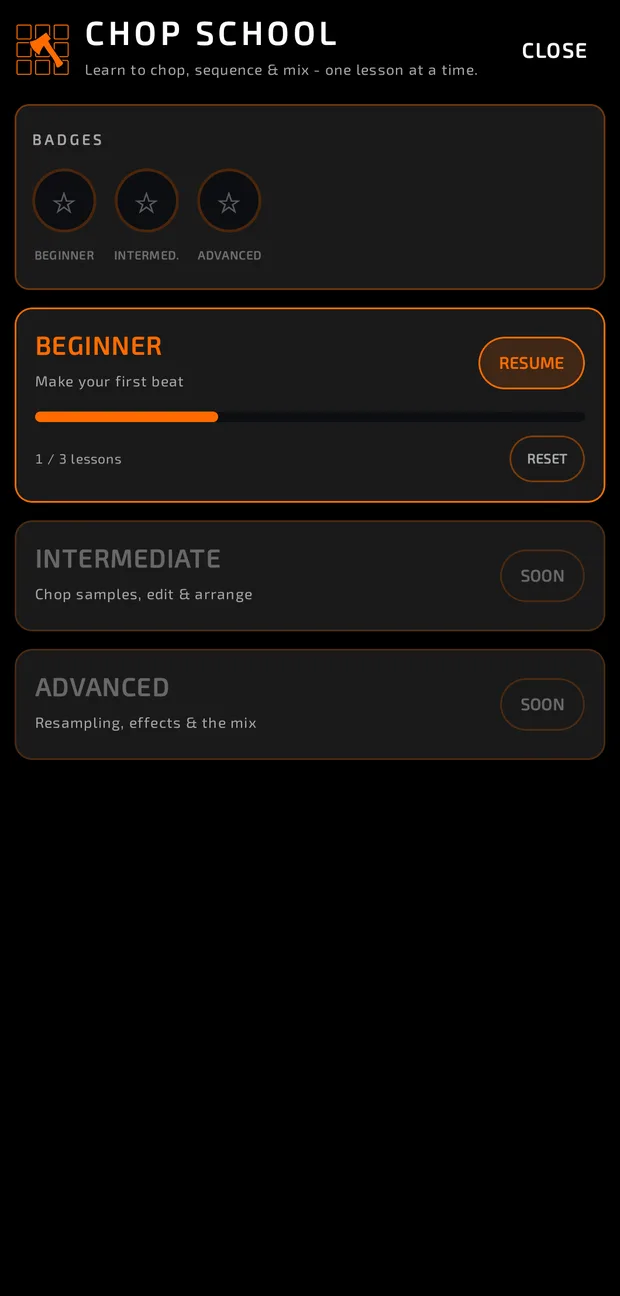
Starting Chop School


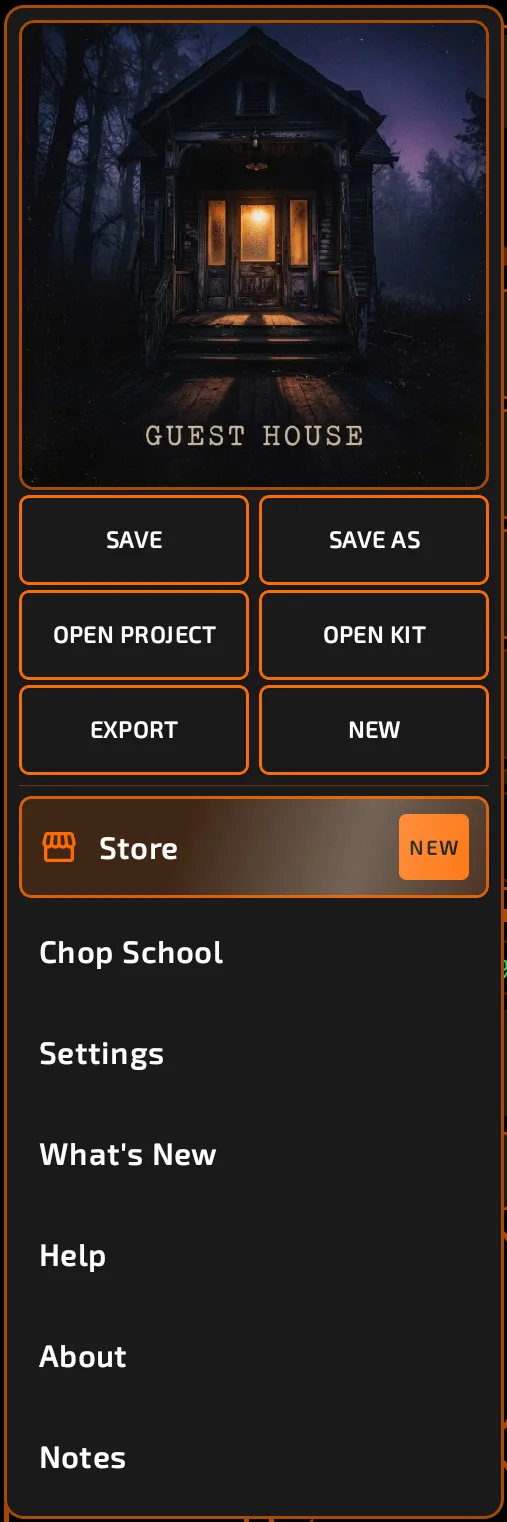
- Open the Chop menu and tap Chop School.
- Chop School always starts on a fresh, empty project. If you have unsaved changes, choose SAVE, DISCARD or CANCEL.
- Tap START on a module.
Your progress is saved. Come back later and tap RESUME to pick up at the next unfinished lesson, or REPLAY to go again. RESET clears a module's progress and badge.
BEGINNER: Make your first beat
A Chop School step in progress: the pointing hand and pulsing beacon on a pad, the caption in the top pill, and the BACK / SKIP / EXIT pills.
chop-school-step.mp4
Lesson 1: Load Your Kit
Load three free drum synths onto pads 1 to 3: Kick-E-Mart (kick), Snare Trap (snare) and Mad Hatter (hi-hat), and play each one.
Lesson 2: Record a Beat
Set the tempo, turn on the metronome, practice along with the click, then arm REC, press START and record your drums.
Lesson 3: Add a Synth
Load ChopSynth on pad 4, choose a preset, and overdub a melody with OVDUB. Then load ChopSynth again on bank B, pick a bass preset and overdub a bassline.
Finish the module to earn the BEGINNER badge.
Coming soon
- INTERMEDIATE: chop samples, edit and arrange.
- ADVANCED: resampling, effects and the mix.
How lessons work
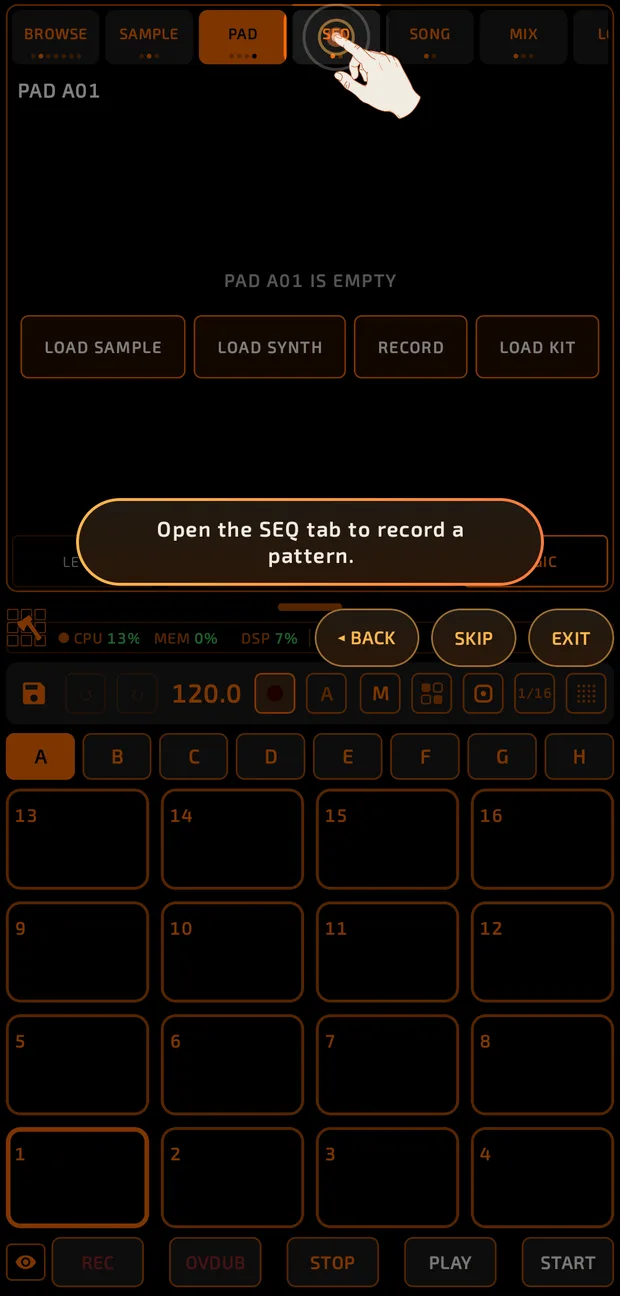
- A hand and a pulsing circle point at what to tap. The instructions show at the top of the screen.
- Most steps move on by themselves when you do the action. Some show a NEXT ▸ button.
- Everything except the target is dimmed on most steps.
- Corner buttons: ◂ BACK (previous step), SKIP (skip this step), EXIT (leave the lesson).
Quick Tour
The Quick Tour is a shorter guided walk through the basics. Start it from Settings > TUTORIAL > QUICK TOUR > START.
It shows you how to:
- Load a synth on a pad.
- Resize the pads with the drag handle.
- Flip through the PAD tab's pages and open the piano roll.
- Use KEYBOARD pad mode.
- Change the tempo by dragging and long-pressing the BPM, and use undo.
- Find the project folders and colors in Settings.
- Open the metronome settings and change the click volume.
Tips
- Use headphones during lessons so the metronome is clear.
- After the Beginner module, save your beat from Chop School as your first project.