 Chop Sampler
User Guide / Pads
Pads
Pads are the heart of Chop. Each pad holds one sound: a sample or a synth. This page covers playing pads, the PAD tab, and moving, copying and deleting pads.
Playing pads
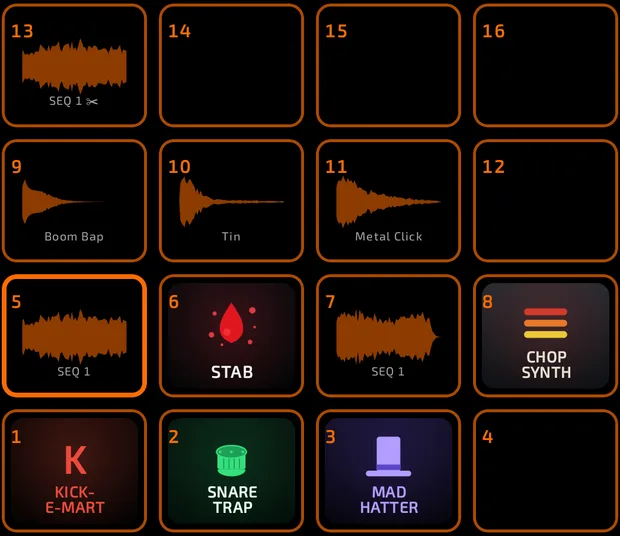
What a pad can look like
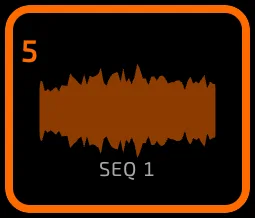
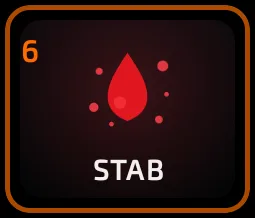
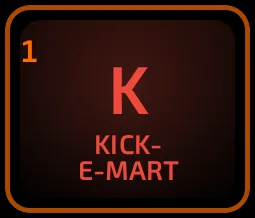
- Tap a pad to play it. It sounds the instant your finger lands and the pad becomes the selected pad.
- Tapping an empty pad just selects it.
- While the sequencer is recording, every tap is recorded. See Sequencer.
Velocity (how hard you hit)
On the screen, every tap plays at full volume unless you turn on one of these:
- PAD CORNERS (PAD > LOGIC): the volume depends on where you tap. Top-left is quietest (25%), top-right 45%, bottom-right 65%, bottom-left 85%, and the center is full.
- VELOCITY pad mode: spreads one sound from soft to loud across the pads. See Pad Modes.
- A MIDI controller sends its own velocity. See MIDI.
Loading a sound onto a pad
Long-press an empty pad. The PAD tab shows PAD A01 IS EMPTY with four choices:
- LOAD SAMPLE: opens Browse so you can drag in a sample.
- LOAD SYNTH: opens the synth picker. See Synths.
- RECORD: opens the recorder. See Sampling and Editing.
- LOAD KIT: loads a whole kit (replaces all pads).
The PAD tab
Select a pad, then open  PAD. The header shows the pad name (for example PAD A01) and its sample name. Synth pads show ◀ ♪ SYNTH · preset name ▶ instead: the arrows step through presets and the middle opens the synth editor.
The header also has:
 GRP chip: the pad's fader group (see Mixer).
 BUS chip: send the pad to one of 8 effect buses, or NONE (direct).
 BYPASS (on the EFX page only): switches off all the pad's effects at once.
The PAD tab has four pages. Tap PAD again (or the buttons along the bottom) to move between them: LEVEL, ENV,  EFX,
EFX,  LOGIC.
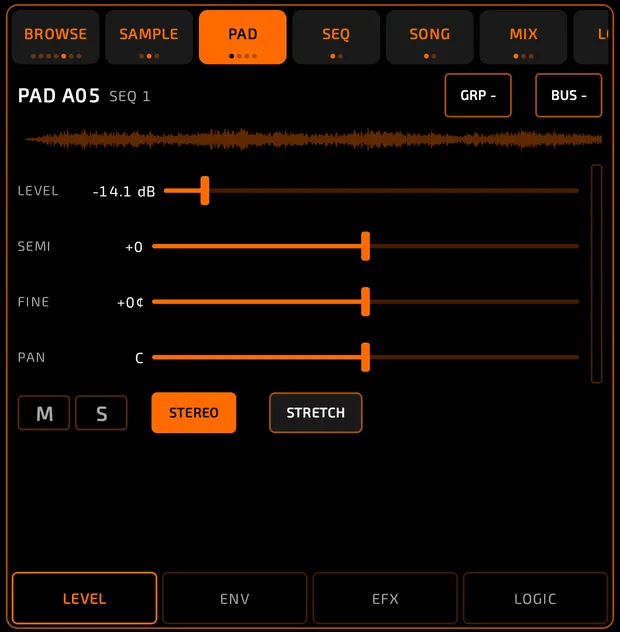
 LEVEL
LEVEL
| Control | Range | Notes |
|---|---|---|
| LEVEL | Silent to about +6 dB | Double-tap for 0 dB. |
| SEMI | -24 to +24 semitones | Pitch in half steps. |
| FINE | -100 to +100 cents | Fine tuning. |
| PAN | L100 / C / R100 | Left to right. |
- Double-tap any fader to reset it.
- Faders move relative to where you grab them, so you can keep playing pads while you drag.
- M and S mute and solo the pad (same as the mixer).
- STEREO / MONO plays the sample in stereo or folds it to mono.
- STRETCH fits the sample to the song tempo. When it's on you also get KEEP PITCH and SAMPLE BPM (drag to change, tap in time to set it, long-press to type it).
 ENV (envelopes)
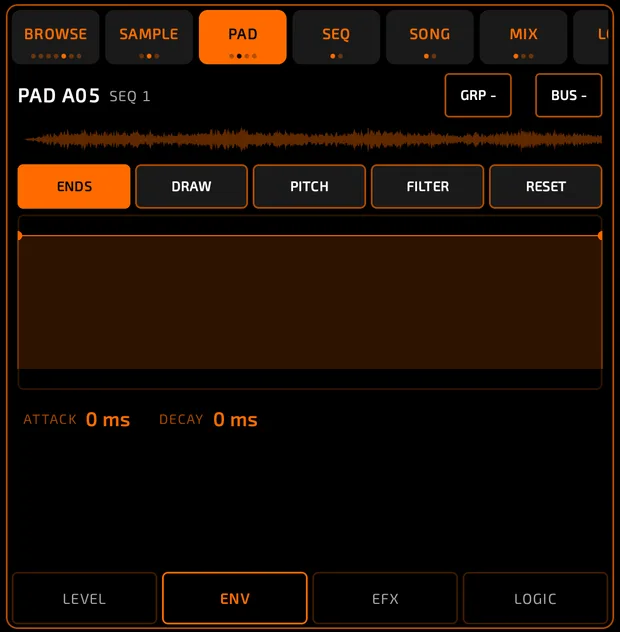
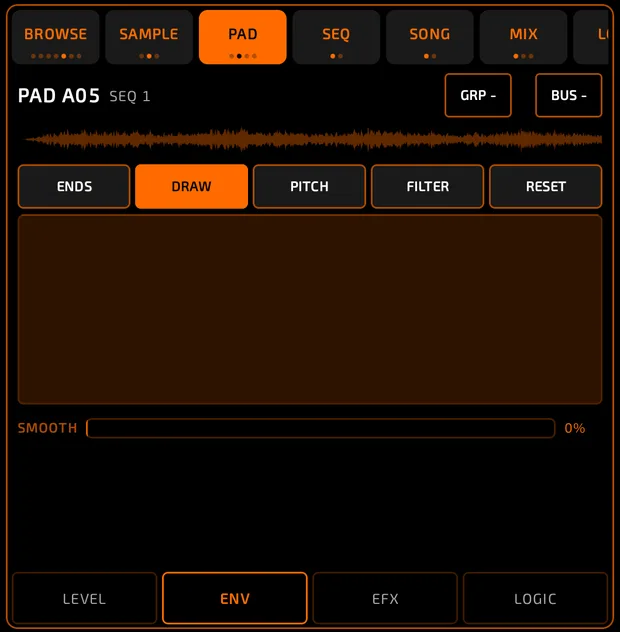
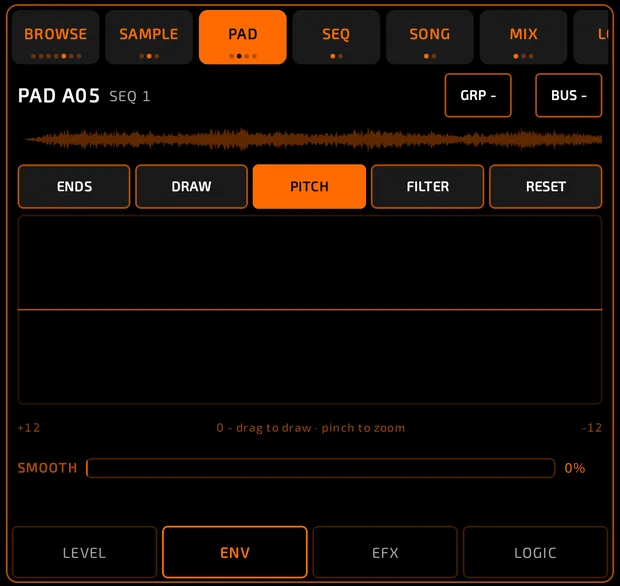
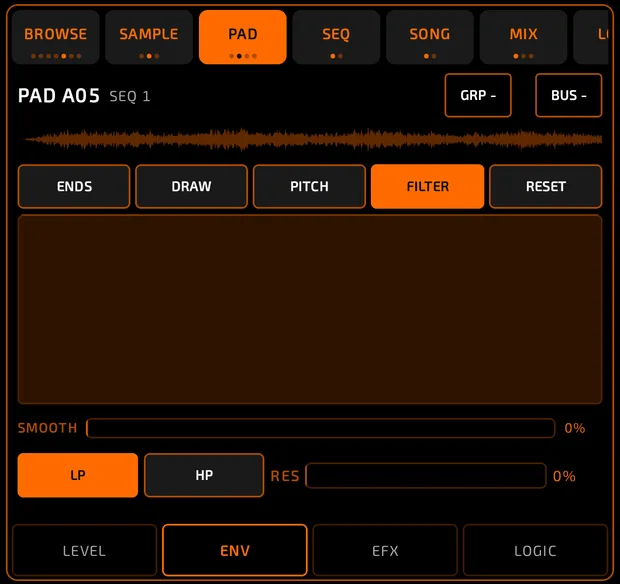
Shape the sound over time:
- ENDS: fade-in (ATTACK) and fade-out (DECAY) handles.
- DRAW: draw a volume shape by hand, with a SMOOTH slider.
- PITCH: draw a pitch shape.
- FILTER: draw a filter sweep, with LP / HP and RES.
- RESET: clears the envelope you're looking at.
PAD tab on the ENV page with the DRAW envelope showing a hand-drawn curve.
pads-env.mp4
EFX (effects)
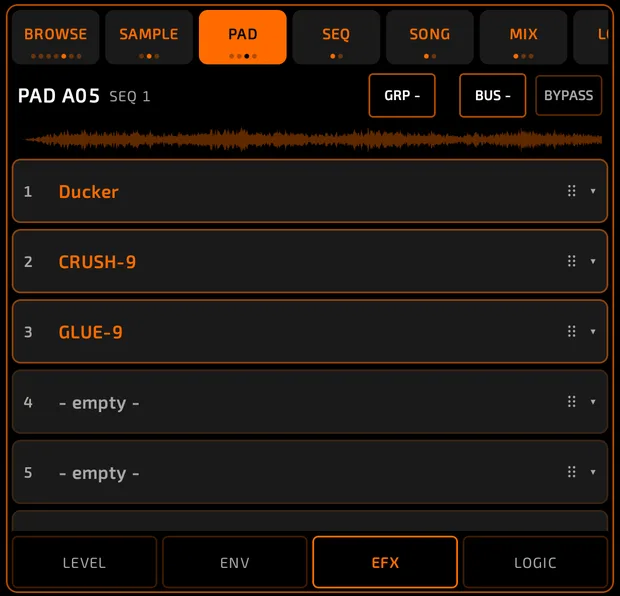
Each pad has 8 effect slots. Tap a slot to add or edit an effect. Long-press and drag a slot to change the order. See Effects.
LOGIC
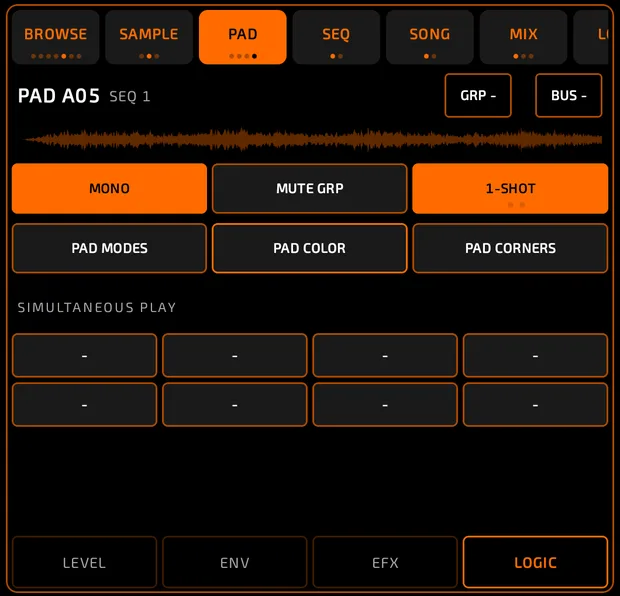
| Control | What it does |
|---|---|
| POLY / MONO | POLY lets hits overlap. MONO cuts the previous hit off. |
| MUTE GRP | Choke group: NONE or GROUP 1 to GROUP 8. A hit cuts off other pads in the same group (for example a closed hat cutting an open hat). |
| Play mode | Tap to cycle 1-SHOT, NOTE ON, NOTE OFF (see below). |
 PAD MODES PAD MODES | Opens the pad modes (TUNE, SCALES, CHORDS and more). See Pad Modes. |
PAD COLOR 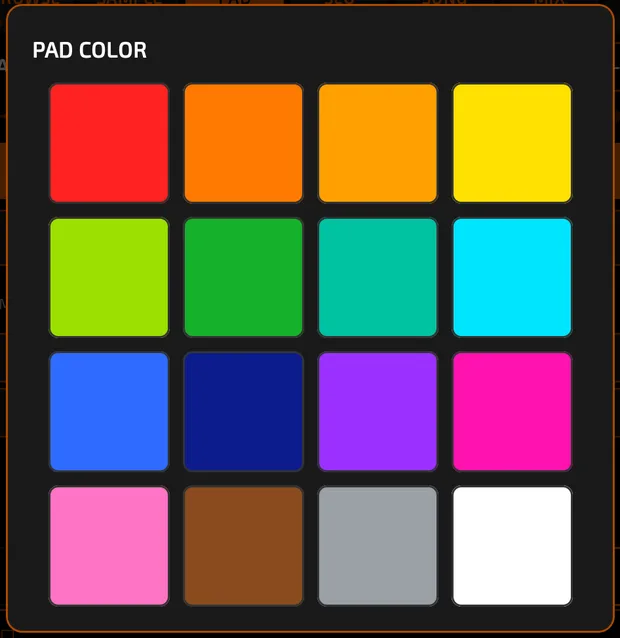 | Pick one of 16 colors for this pad (or every selected pad). |
| PAD CORNERS | Turns on tap-position velocity (see above). |
| MIDI: FOLLOW / MIDI CH | Synth pads only: which MIDI channel plays this pad. See MIDI. |
| SIMULTANEOUS PLAY | Up to 8 other pads that fire together with this one. |
Play modes
| Mode | What happens |
|---|---|
| 1-SHOT | The sound plays to the end, even if you let go. |
| NOTE ON | The sound plays only while you hold the pad. |
| NOTE OFF | Nothing on press; the sound plays when you let go. |
Looping a pad: turn on LOOP in the sample editor (SAMPLE > EDIT). A 1-SHOT pad with LOOP on starts looping on the first tap and stops on the next tap.
Mute and solo while you play

The M button in the middle strip turns the pads into mute or solo switches:
- Tap M once: PAD MUTE (red). Tapping a pad now mutes or unmutes it instead of playing it.
- Tap again: PAD SOLO (green). Tapping a pad solos it.
- Tap again: off.
Long-press M to choose PAD MUTE BEHAVIOR: TOGGLE (tap on, tap off; the default) or NOTE ON (muted only while you hold the pad).
Muted pads show a red tint, soloed pads a green tint. Mutes you play while recording are recorded into the sequence.
Simultaneous (linked) pads
Make one pad trigger others at the same time, for example to layer a kick and a sub.
- Select the main pad and open PAD > LOGIC.
- Under SIMULTANEOUS PLAY, tap an empty slot.
- In SIMULTANEOUS PAD, pick a bank and a pad.
- Repeat for up to 8 pads. Tap a slot and choose CLEAR to remove a link.
Moving, copying, swapping and deleting pads
All of this is done by dragging. Use one finger.
A pad being dragged, with the top screen showing "DROP HERE TO DELETE".
pads-drag.mp4
How to copy a pad
- Long-press a loaded pad, then drag it.
- Drop it on an empty pad. The pad is copied; the original stays where it was.
How to swap or overwrite a pad
- Long-press and drag a pad onto a pad that already has a sound.
- In PAD OCCUPIED, choose OVERWRITE or SWAP.
How to move a pad to another bank
- Long-press and drag the pad.
- Hold it over a bank letter for a moment until that bank opens.
- Drop it on a pad.
How to delete (clear) a pad
- Long-press and drag the pad. The top screen turns into a bin: DROP HERE TO DELETE.
- Drag over it until it says RELEASE TO DELETE, then let go.
- If the pad has notes in the sequencer, Chop asks what to remove: DELETE NOTES, DELETE SAMPLE (or DELETE SYNTH), DELETE ALL or SKIP.
There's no separate copy/paste or clear button for pads: dragging does it all, and undo brings back mistakes.
Multi-select
Edit many pads at once.
- Tap the multi-select button (2x2 icon) in the middle strip. It turns purple:
 SELECT.
 - Tap pads to add or remove them (they don't play), or drag a finger across pads to paint a selection. You can select pads in different banks.
- Tap the button again. It turns green: LOCKED. The selection is fixed and the pads play normally.
- Tap again to turn it off. Your selection is remembered.
While pads are selected (SELECT or LOCKED), changes on the PAD tab apply to all of them: level, pitch, pan, play mode, POLY/MONO, mute group, color, bus, fader group and more.
You can also:
- Drag any selected pad to move the whole group, or to the bin to delete the whole group.
- Drop a sample from Browse onto a selected pad to load it onto every selected pad (LOAD TO n PADS).
Note repeat (ratchet)
Hold a pad to repeat it in time with the tempo.
- Tap the note repeat button in the middle strip (it shows the speed, for example 1/16).
- Hold a pad. It repeats at that speed.
- Long-press the button to open
 NOTE REPEAT and pick a speed: 1/4, 1/8, 1/16, 1/32, 1/64, or a triplet (1/4T to 1/64T). You can change speed while still holding a pad.
Repeats follow swing, and they're recorded as separate notes when you record.
Tips
- Pad colors make big kits easier to read. Select several pads and set them all at once.
- Put open and closed hats in the same MUTE GRP so the closed hat chokes the open one.
- Slices you make in the CHOP editor share a mute group automatically.