 Chop Sampler
User Guide / Getting Started
Getting Started
Chop is a beat maker built on drum pads. This page is a quick tour of the screen so you know where everything lives before you dive into the other guides.
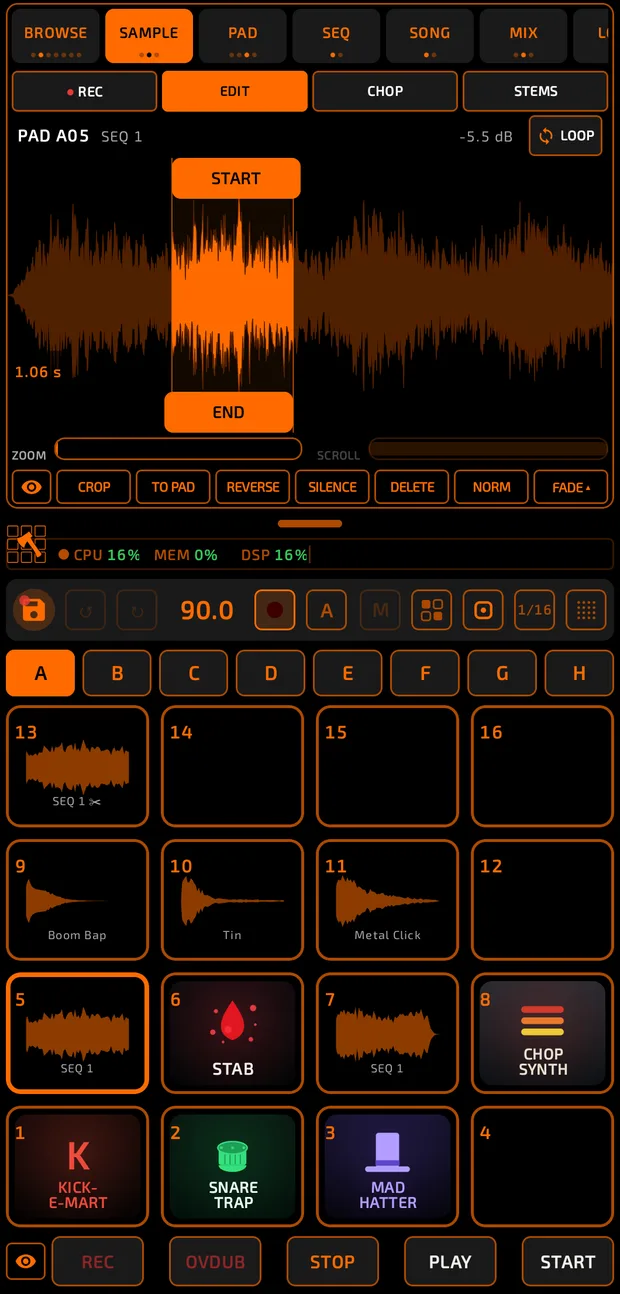
Where each part of the screen lives
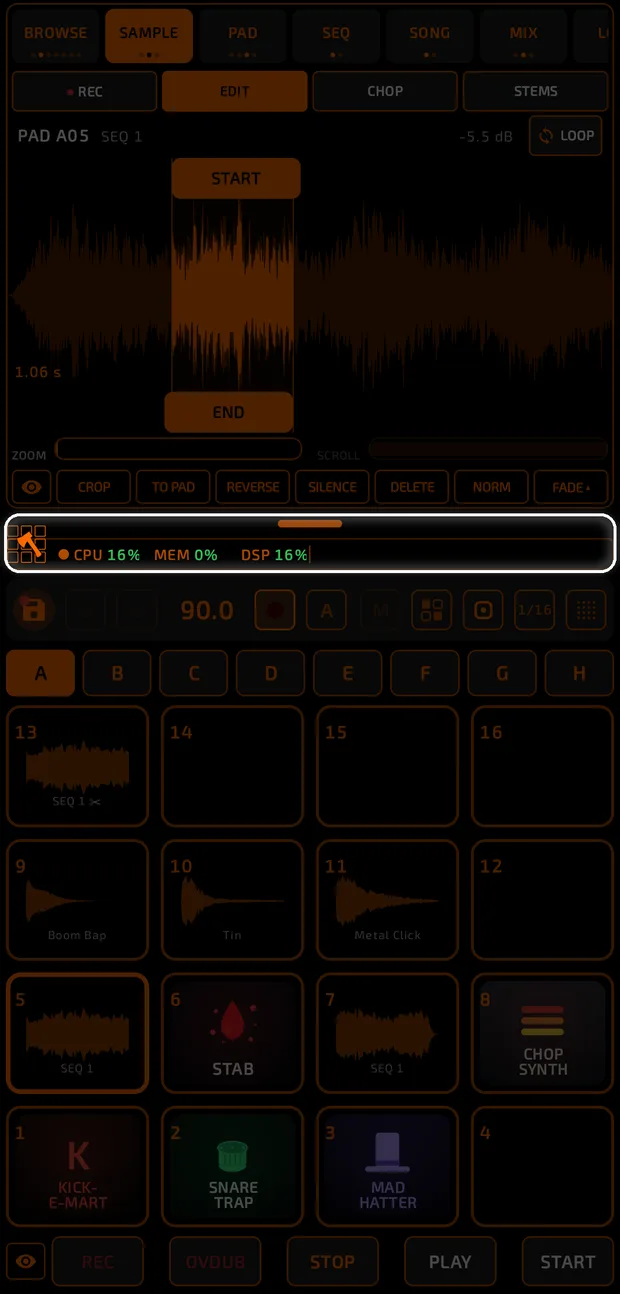
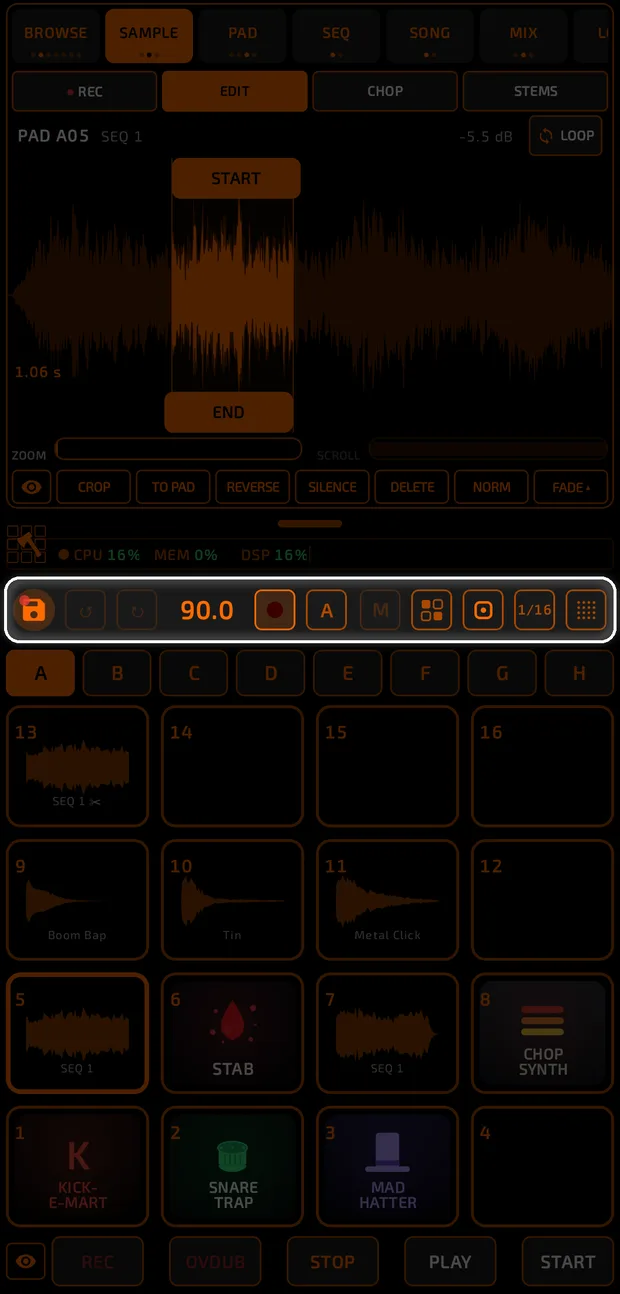
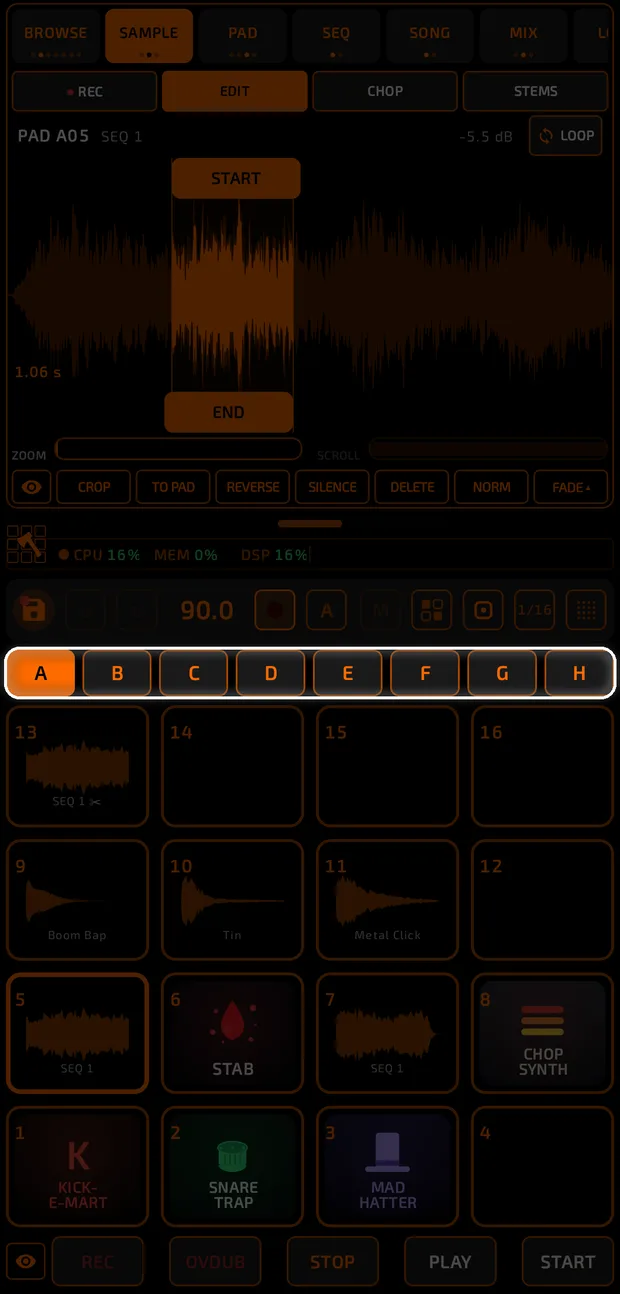
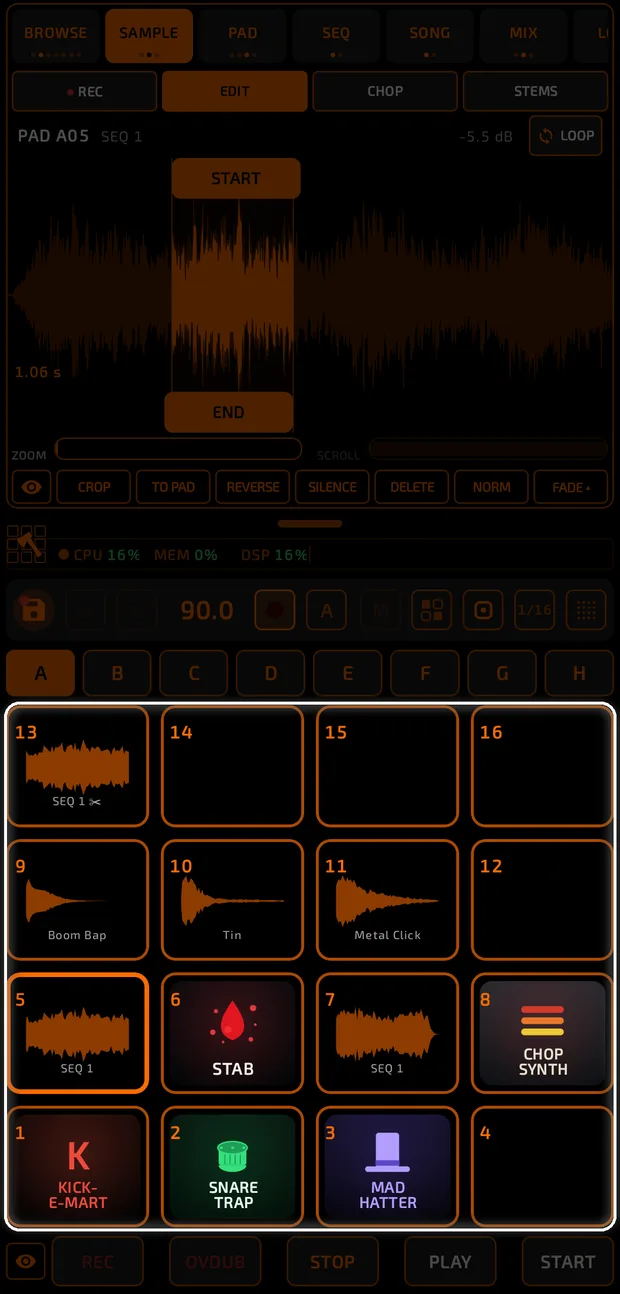
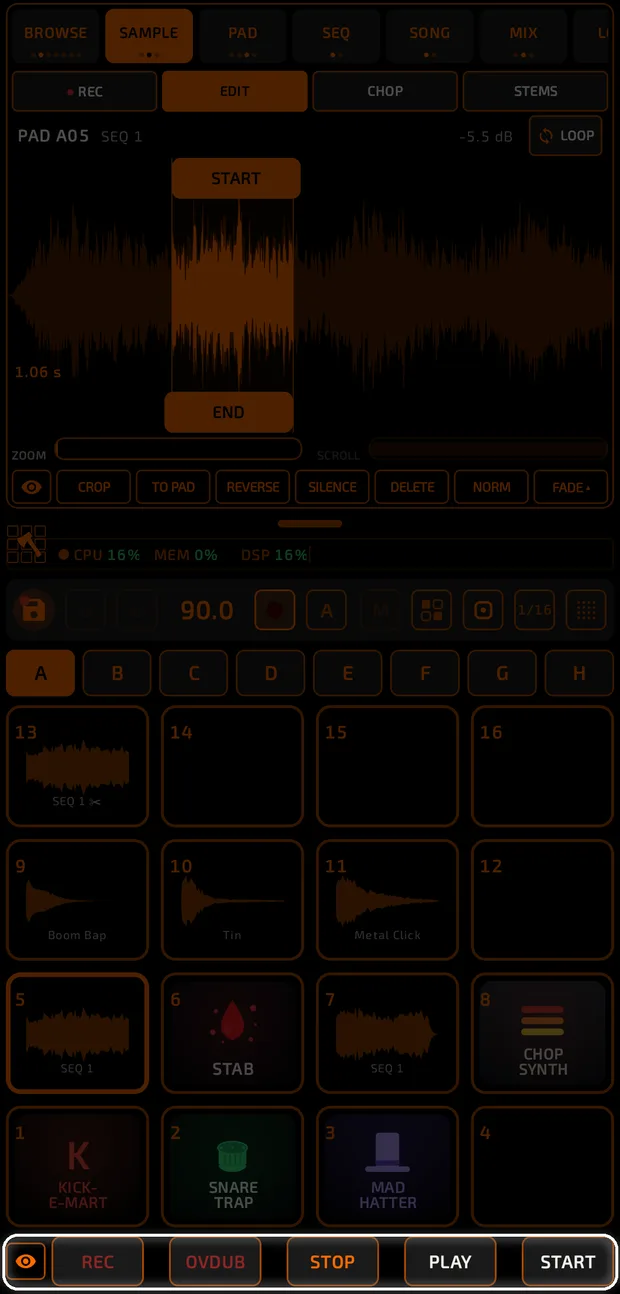
The screen, top to bottom (portrait)
| Area | What it does |
|---|---|
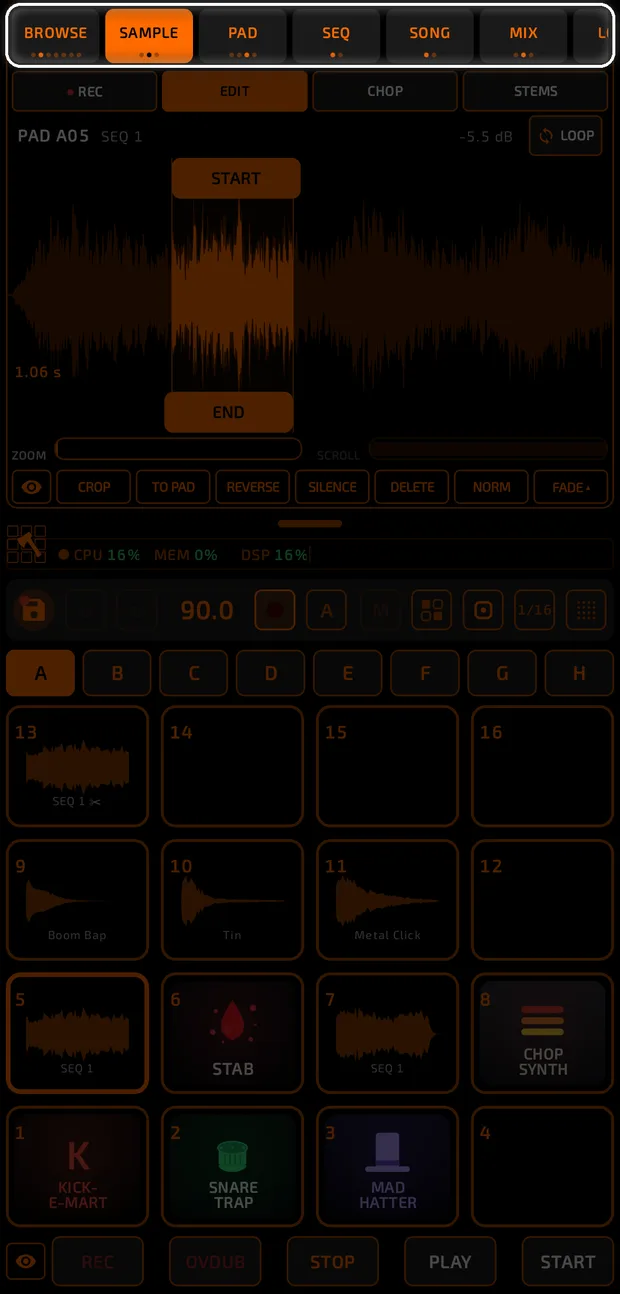
Tab row  | Switches the top screen: BROWSE, SAMPLE, PAD, SEQ, SONG, MIX, LOOP. |
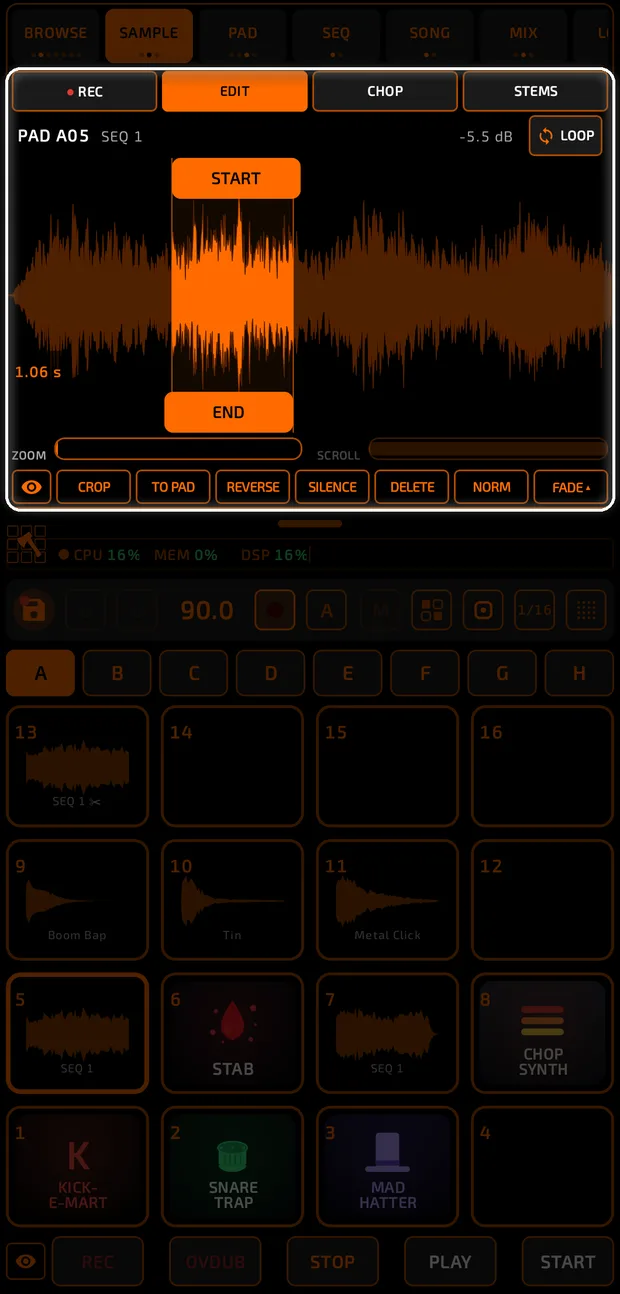
Top screen 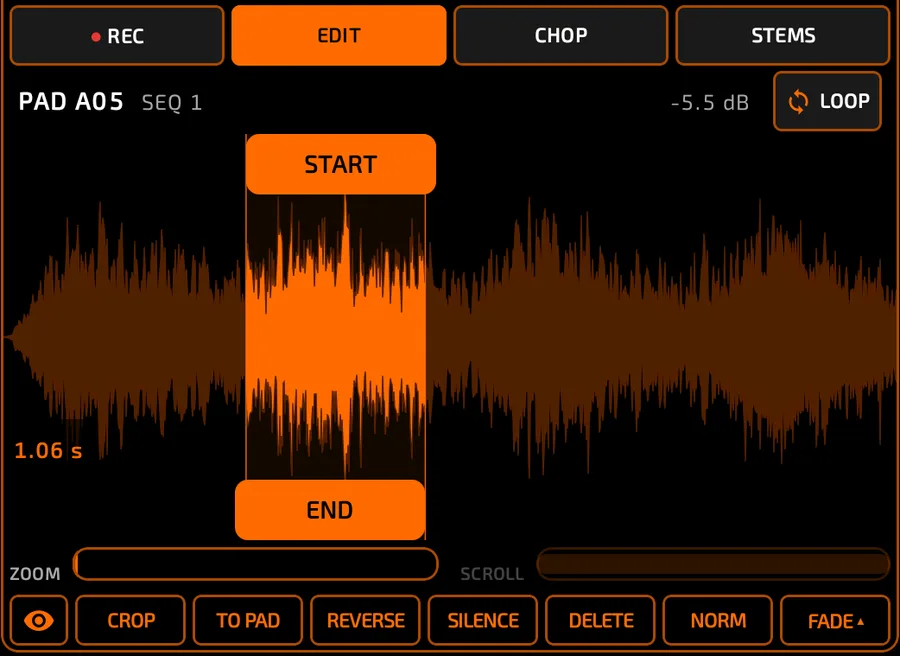 | Shows whatever tab you picked. |
Drag handle + status bar  | Drag up or down to make the pads bigger or smaller. The status bar shows CPU / MEM / DSP and the current mode. See Flatten and Resources. |
Middle strip  | Save, undo/redo, tempo, metronome, automation, mute/solo, multi-select, flatten, note repeat and pad modes. |
Bank row  | Banks A to H. |
Pads 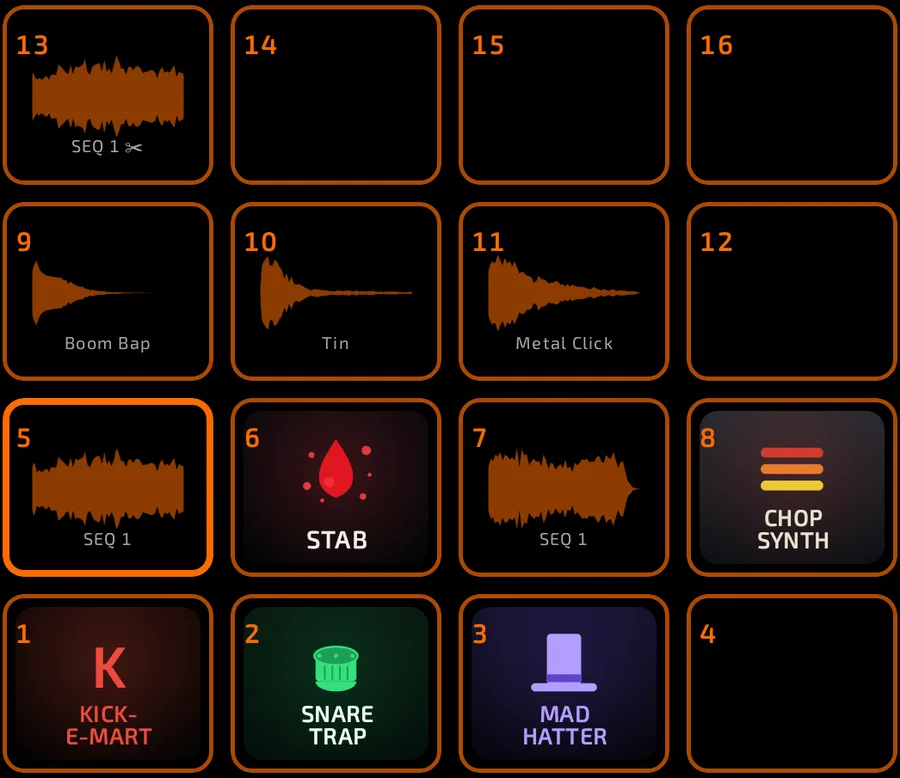 | 16 pads per bank. |
Transport  | REC, OVDUB, STOP, PLAY, START. |
Tabs
The tab row sits at the top. Tap a tab to open it. Tap the tab you're already on to flip through its sub-pages (small dots under the label show which page you're on).
| Tab | What's inside | Tapping it again cycles... |
|---|---|---|
 BROWSE BROWSE | Kits, synths, samples, favorites, projects, memory and MIDI files. See Browse. | KITS, SYNTHS, SAMPLES, FAVS, PROJECTS, MEMORY, MIDI |
 SAMPLE (reads SYNTH on a synth pad) SAMPLE (reads SYNTH on a synth pad) | The recorder and sample editor, or the synth editor. | REC, EDIT, CHOP |
 PAD PAD | Level, pitch, pan, envelopes, effects and play logic for the selected pad. | LEVEL, ENV, EFX, LOGIC |
 SEQ (reads PIANO in the piano roll) SEQ (reads PIANO in the piano roll) | The sequencer. | Sequencer and piano roll |
 SONG SONG | Chain sequences into a song. | ARRANGE and LIST |
 MIX MIX | The mixer. | Three mixer sizes |
 LOOP LOOP | The live looper. |
Two extra tabs appear only when you use them, and the status bar tells you which mode you are in:
| Tab | What it is |
|---|---|
 SYNTH SYNTH | Replaces SAMPLE whenever the selected pad holds a synth. See Synths.  |
| CHORDS | In-key chords mode. See Pad Modes.   |
| PROGRESS. | Chord progressions mode. See Pad Modes.   |
The extra tabs in use
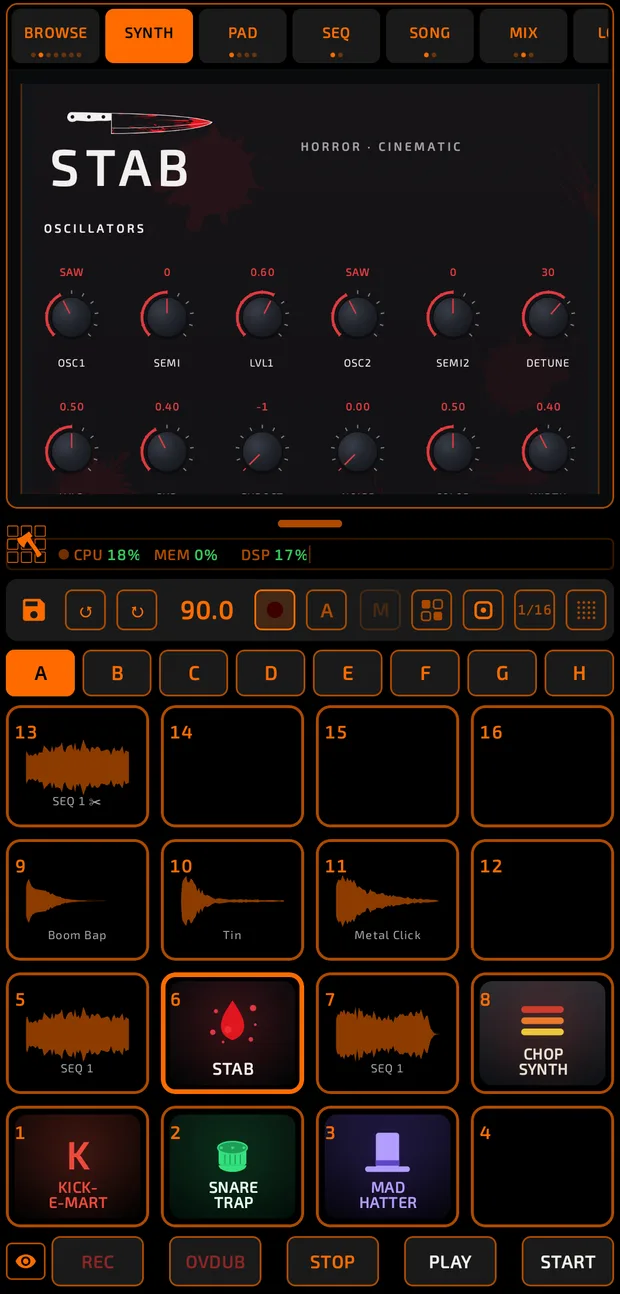
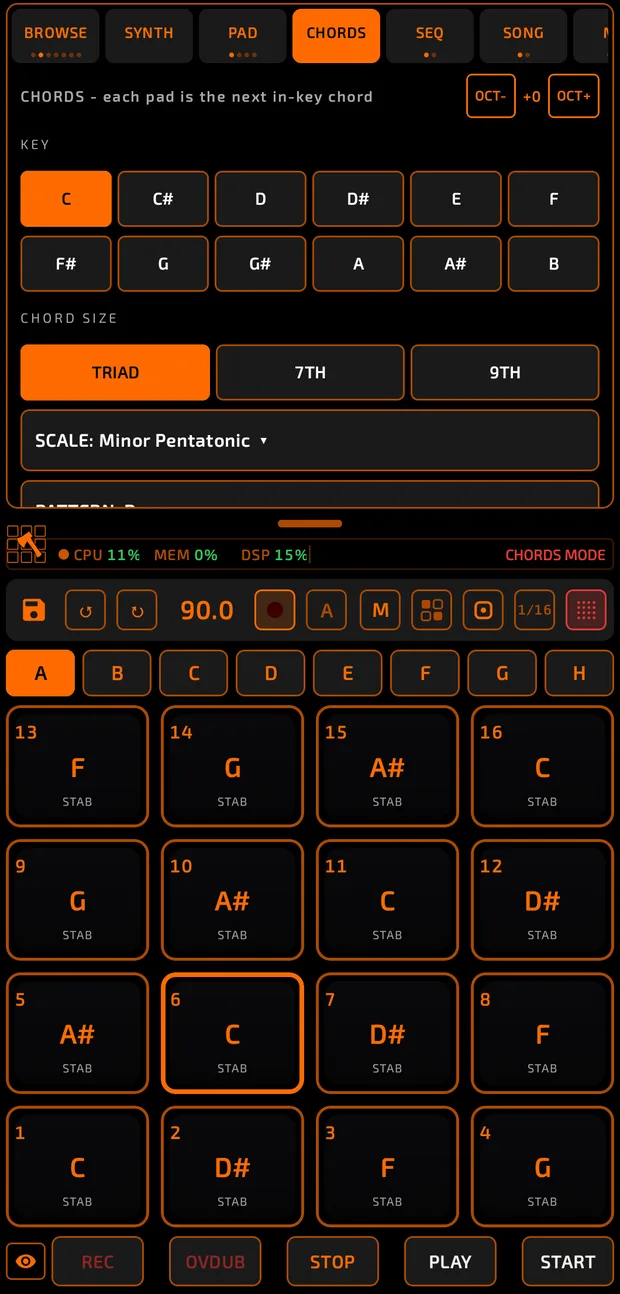
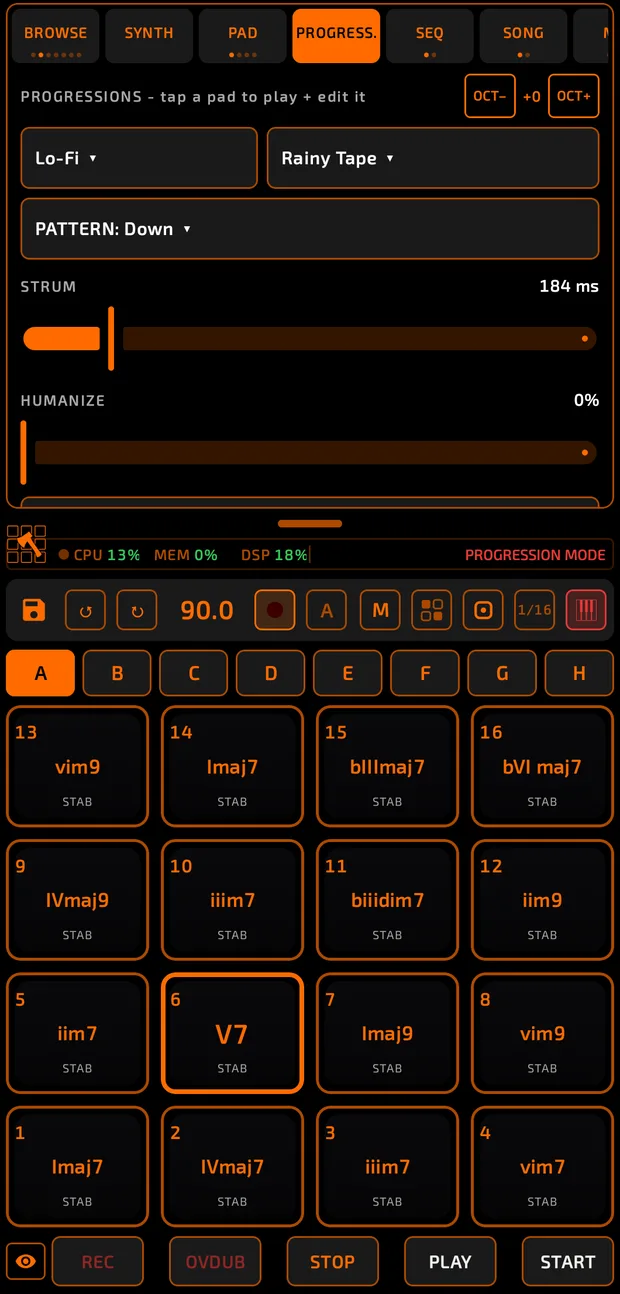
If the tabs don't all fit, swipe the tab row sideways.
Banks and pads
- There are 8 banks, A to H, with 16 pads each: 128 pads in all.
- Tap a bank letter to switch banks.
- Pads are numbered like a classic drum machine: pad 1 is bottom-left, pad 16 is top-right.
- Pads are named by bank and number, for example A01 or E09.
- Sample pads show a small waveform. Synth pads show a badge for their instrument.
See Pads for everything you can do with a pad.
Transport
| Button | What it does |
|---|---|
 REC REC | Arms overwrite recording. While playing, it punches in. |
 OVDUB OVDUB | Same as REC, but adds notes on top instead of replacing them. |
 STOP STOP | One tap pauses. Two quick taps stop, go back to bar 1 and silence everything (a "panic"). |
 PLAY PLAY | Plays from where the playhead is. |
 START START | Plays from bar 1. |
The buttons react the moment your finger touches them, so you can hit START and a pad at the same time.
In portrait, the eye icon  at the far left of the transport hides or shows the transport buttons. It pulses red while they're hidden.
The middle strip
| Control | Tap | Long-press |
|---|---|---|
 Save (floppy icon) Save (floppy icon) | Saves the project. Glows with a red dot when you have unsaved changes.  | |
  Undo / Redo (circular arrows) Undo / Redo (circular arrows) | Undo or redo the last change. | |
 BPM (for example 120.0) BPM (for example 120.0) | Tap tempo. Drag up or down to fine-tune. | Opens TEMPO (BPM, time signature, swing). |
 Metronome (square with a red light) Metronome (square with a red light) | Click on or off. | Opens METRONOME (count-in, rate, volume). |
 A A | Arms automation recording. | |
 M M | Cycles pad MUTE, SOLO and off. | Opens PAD MUTE BEHAVIOR. |
 Multi-select (2x2 icon) Multi-select (2x2 icon) | Cycles OFF, SELECT and LOCKED. | |
 Flatten (pad icon with a dot) Flatten (pad icon with a dot) | Opens FLATTEN. | |
 Note repeat (shows 1/16) Note repeat (shows 1/16) | Note repeat on or off. | Opens NOTE REPEAT speeds. |
 Pad modes (4x4 dot icon) Pad modes (4x4 dot icon) | Opens PAD MODES, or turns the active mode off. |
The status bar
The left half shows CPU, MEM and DSP as percentages:

- CPU: how busy the phone's processor is with Chop.
- MEM: how much of Chop's sample memory is in use.
- DSP: how much of the audio engine's time budget is used. Near 100% means crackles are likely.
What these numbers mean in practice, and what to do when they climb, is covered in Flatten and Resources.
Numbers turn orange from 60% and red from 80%. A small dot beside them turns red if the phone is running hot.
Tap the numbers to open the RESOURCES window. See Flatten and Resources.
The right half shows the current mode, for example PAD MUTE, 3 PADS SELECTED, AUTOMATION ENABLED or TUNE MODE.
The Chop menu
Tap the Chop logo  at the left end of the status bar. The menu opens upward:
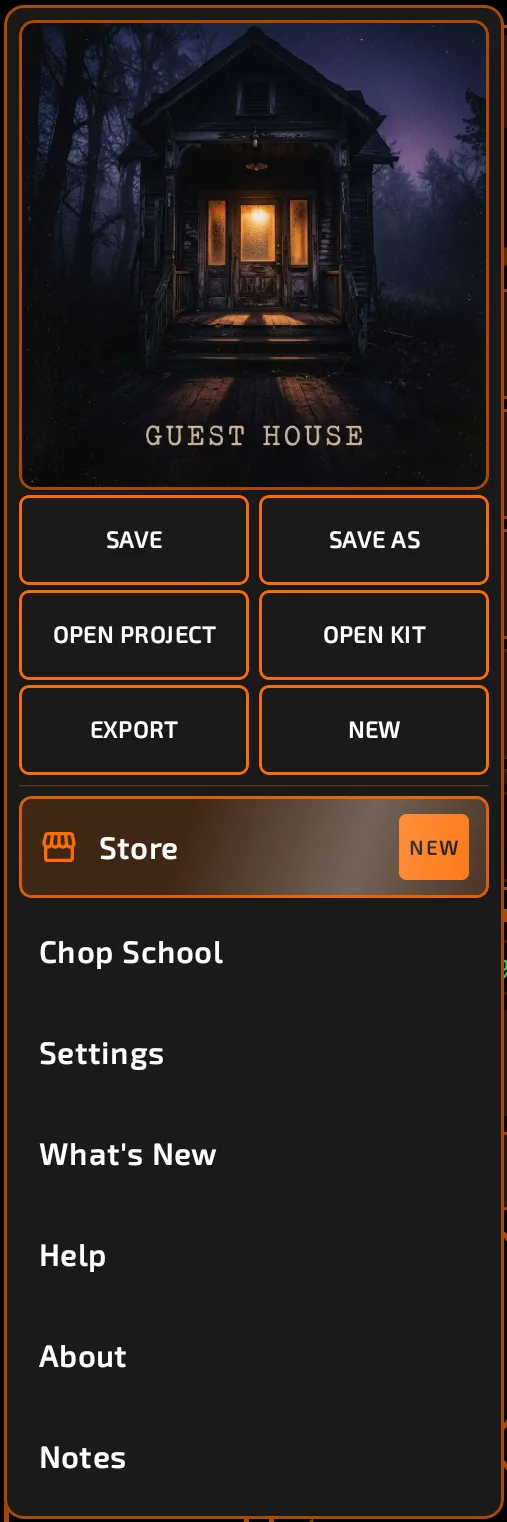
- PROJECT IMAGE: tap to choose a cover picture for the project.
- SAVE, SAVE AS, OPEN PROJECT, OPEN KIT, EXPORT, NEW: see Projects and Export.
- Store: browse premium synths and effects. See Store.
- Chop School: guided lessons. See Chop School.
- Settings: see Settings.
- What's New: the latest release notes.
- Help: FAQ, audio fixer, supported gear and support links. See Troubleshooting.
- About: version, audio info for your phone, credits and links.
- Notes: a notepad saved with your project.
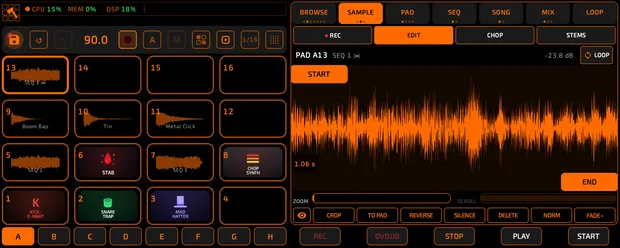
Landscape
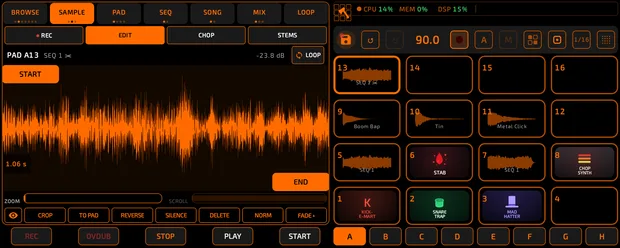
Chop also works in landscape. Turn it on in Settings > DISPLAY > ORIENTATION.
- The screen splits in two: pads on one side, the tab screen on the other.
- The bank row sits under the pads and the transport sits under the tab screen.
- LH and RH lock landscape for a left- or right-hand grip.
Left-hand and right-hand grips
Full screens
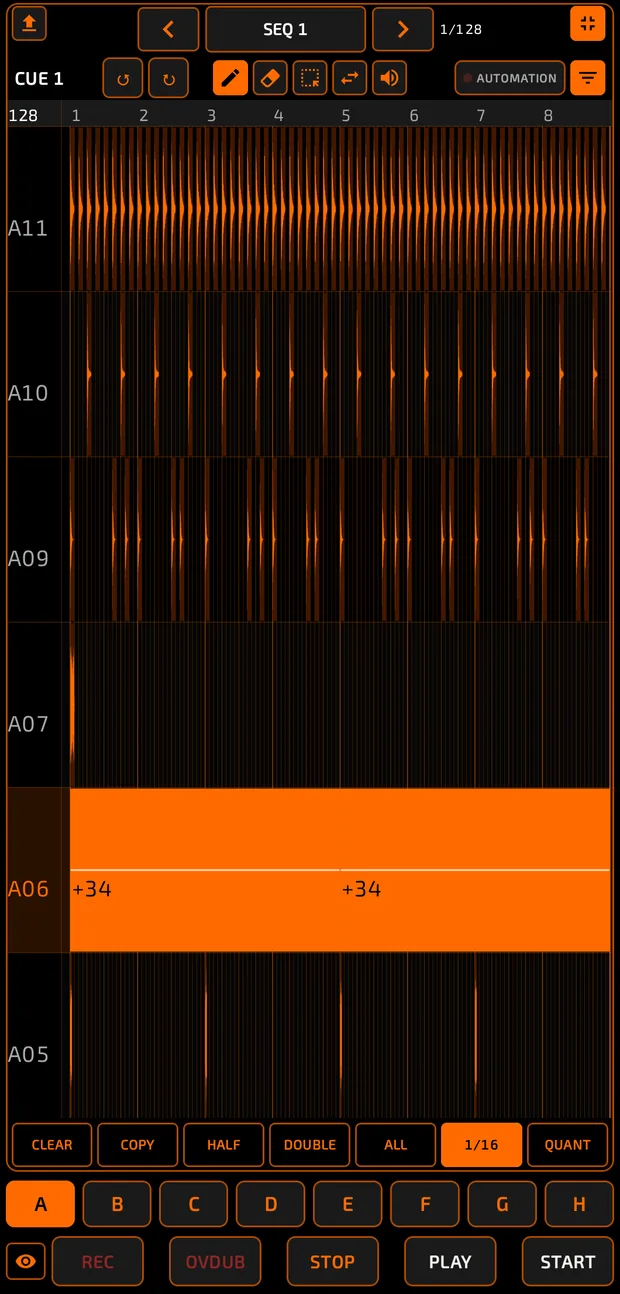
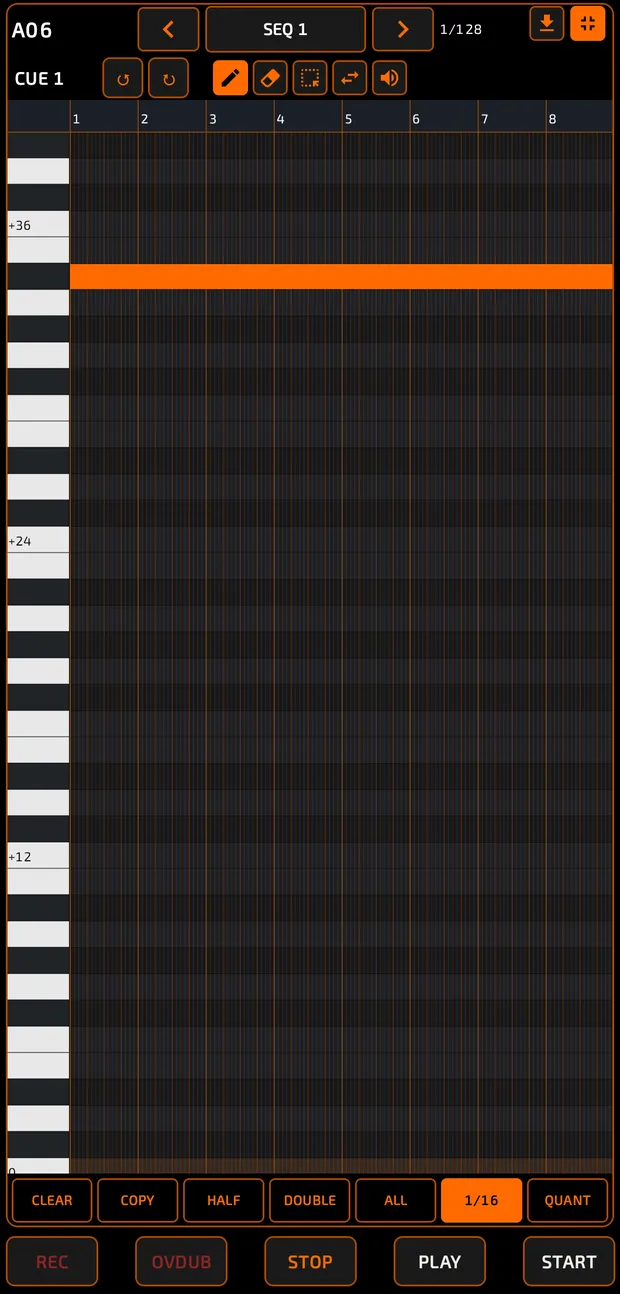
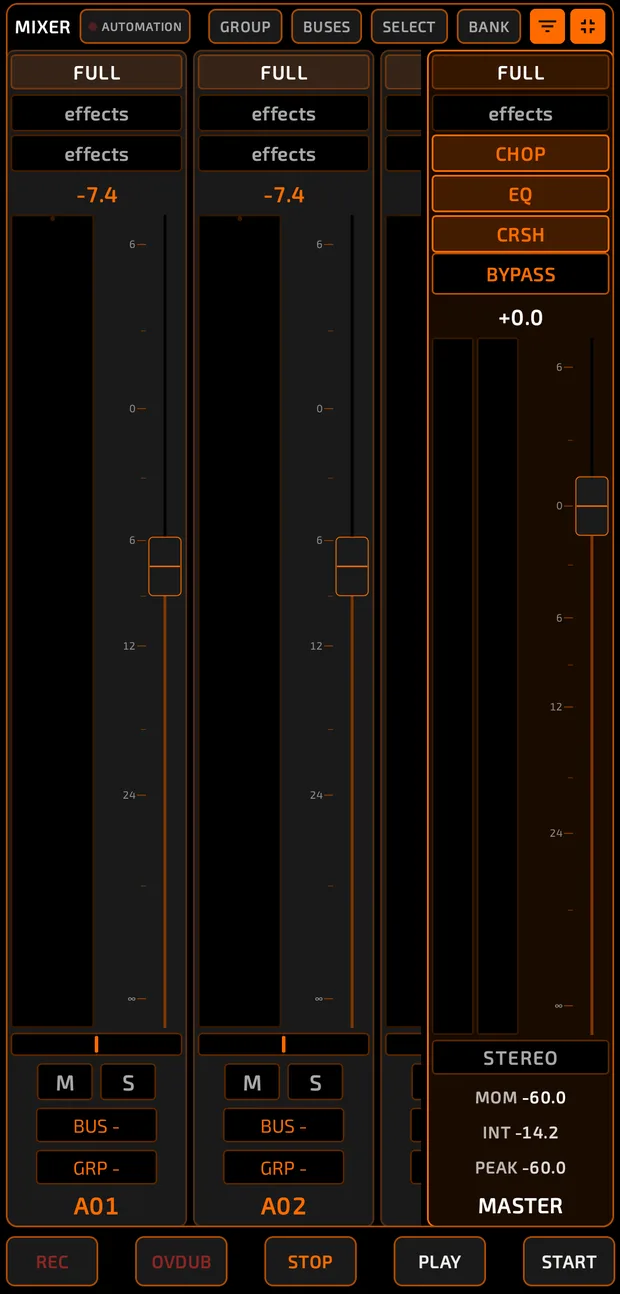
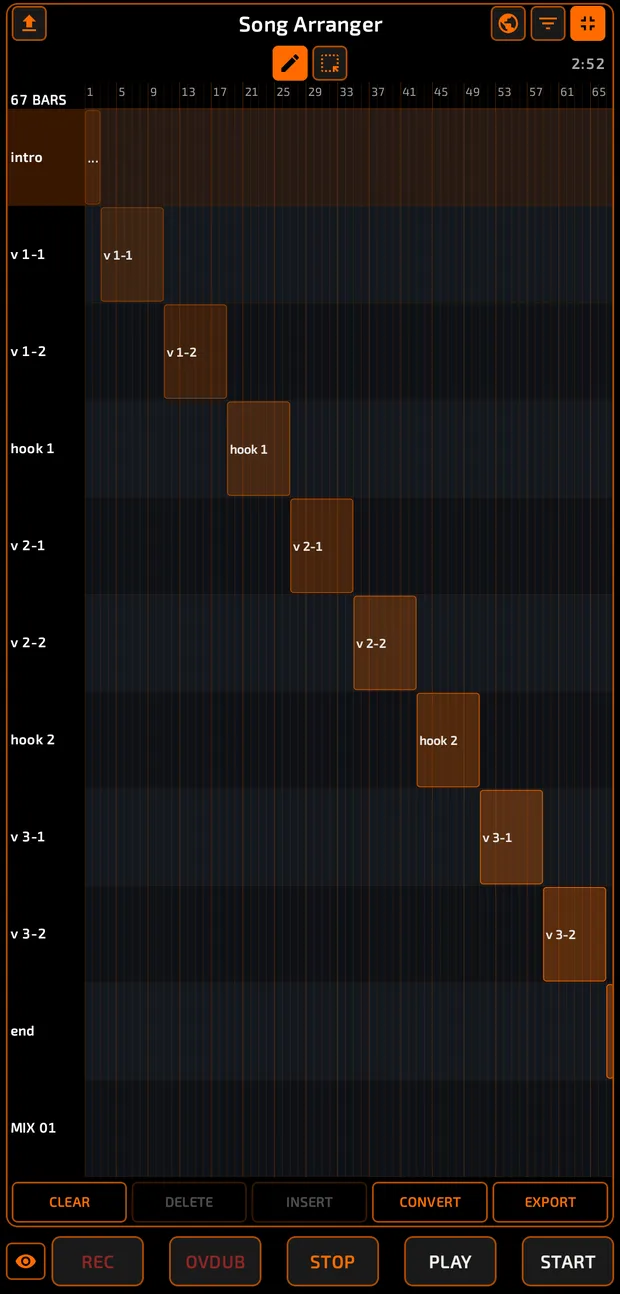
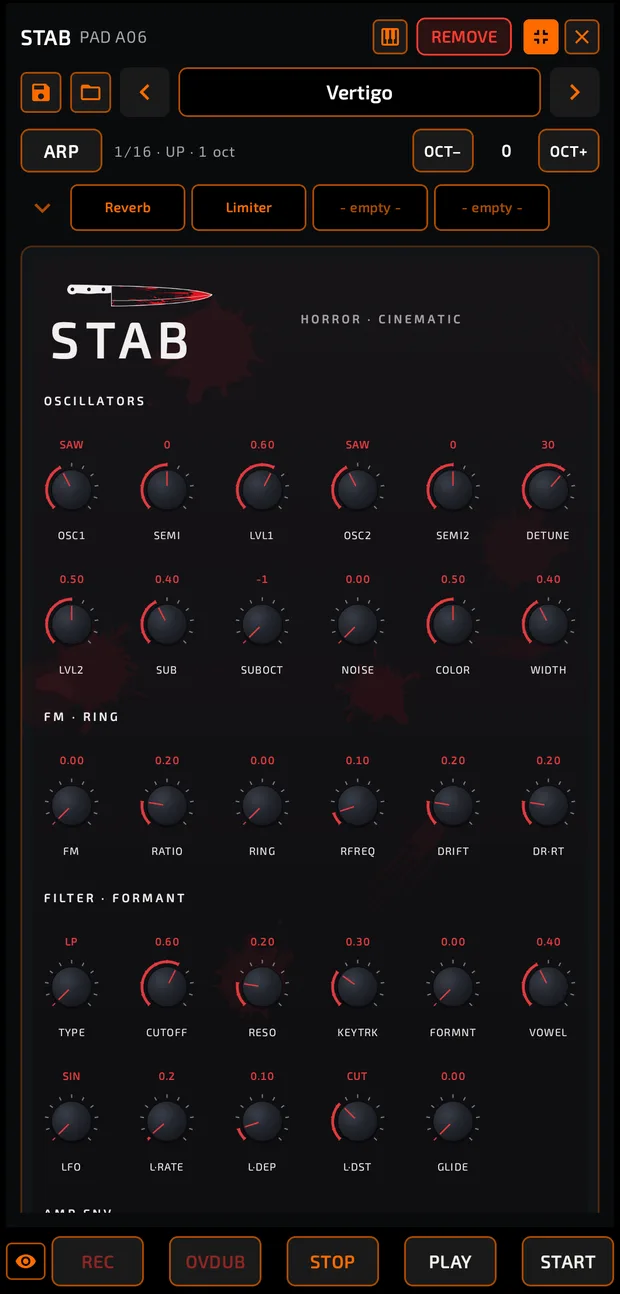
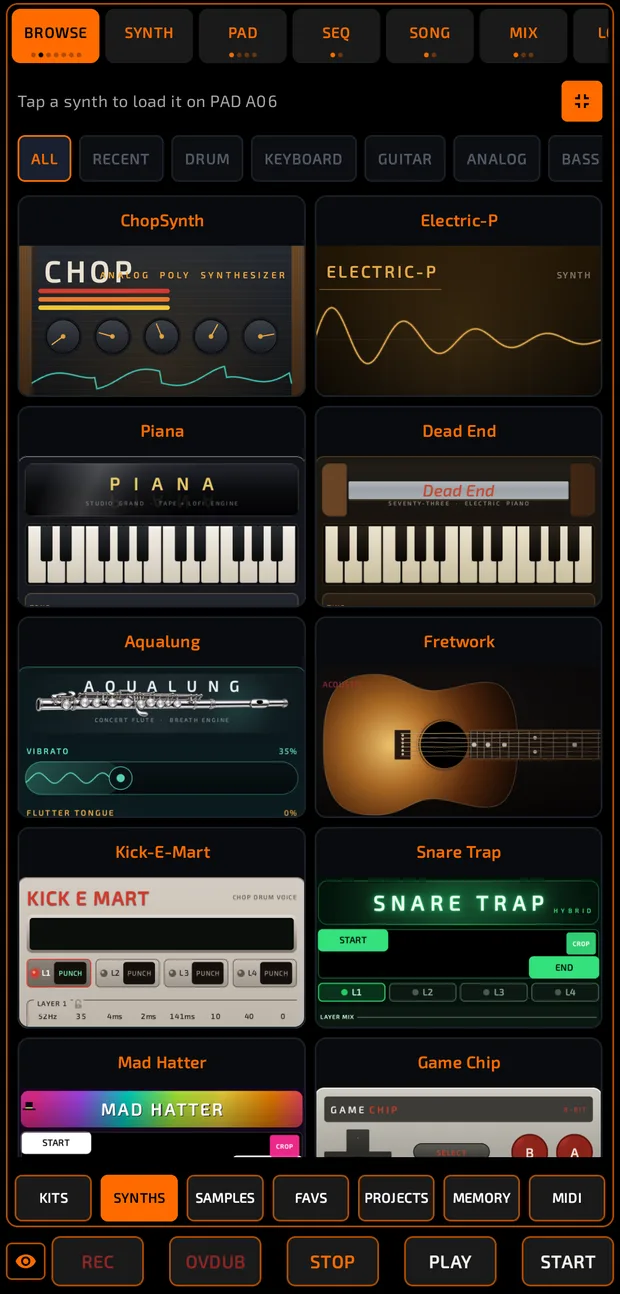
The sequencer, piano roll, mixer, song arranger, synth editor and Browse can go full screen with their expand icon  . Tap
. Tap  to come back. A synth editor also has its own pop-out icon
  .
.
Full screens hide the pads but never the transport bar, so you can always play and stop.
Every screen that goes full screen
Leaving the app
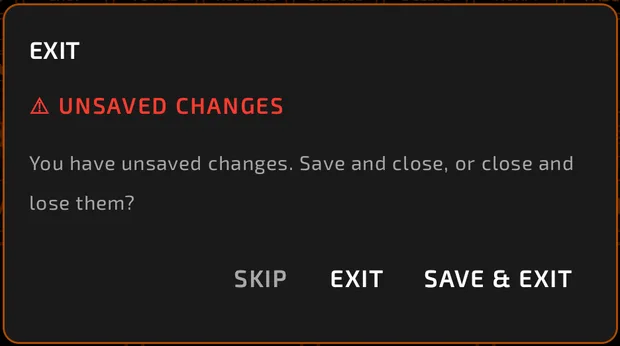
The Android back button asks before closing Chop.
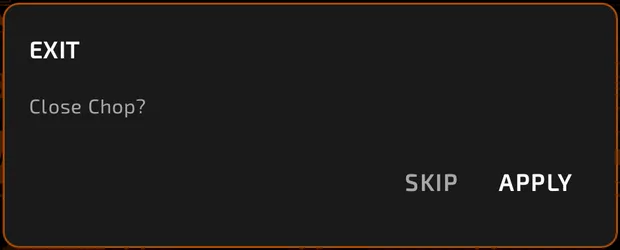
If you have unsaved changes, the dialog offers SAVE & EXIT instead, so you never lose work by backing out.
Tips
- Drag the handle above the status bar to trade pad size for screen space.
- Almost every dialog in Chop uses SKIP (cancel) and APPLY (do it).
- Double-tap any fader to reset it.
- If audio crackles, see Troubleshooting.